<?xml version="1.0" encoding="UTF-8"?>
<feed
  xmlns="http://www.w3.org/2005/Atom"
  xmlns:thr="http://purl.org/syndication/thread/1.0"
  xml:lang="en"
   >
  <title type="text">MotionObj</title>
  <subtitle type="text">We make iOS apps and services </subtitle>

  <updated>2021-04-14T13:24:36Z</updated>
  <generator uri="http://blogofile.com/">Blogofile</generator>

  <link rel="alternate" type="text/html" href="None" />
  <id>None/feed/atom/</id>
  <link rel="self" type="application/atom+xml" href="None/feed/atom/" />
  <entry>
    <author>
      <name></name>
      <uri>None</uri>
    </author>
    <title type="html"><![CDATA[Myths about iOS and devices running iOS]]></title>
    <link rel="alternate" type="text/html" href="https://motionobj.com/articles/myths-about-ios-and-devices-running-ios" />
    <id>https://motionobj.com/articles/myths-about-ios-and-devices-running-ios</id>
    <updated>2014-07-19T18:35:00Z</updated>
    <published>2014-07-19T18:35:00Z</published>
    <category scheme="None" term="iOS" />
    <summary type="html"><![CDATA[Myths about iOS and devices running iOS]]></summary>
    <content type="html" xml:base="https://motionobj.com/articles/myths-about-ios-and-devices-running-ios"><![CDATA[<p><img src="/images/posts/myth.jpg"></p>
<h2>1. You have to manually kill apps, otherwise they will consume battery and memory while running in the background</h2>
<p>This is one of the most common myths about iOS. In general, most iOS apps can’t run like they normally do in the background. When you tap the home button or switch to a different app, the previous app is backgrounded and suspended. This means the app’s state is saved and the app stops running (so it doesn’t consume battery power), but stays in memory. When iOS – usually for the currently active app – needs more memory, it will begin purging backgrounded apps to free up memory. This is automatically done by the OS.</p>
<p>Certain special class of apps do have to run in the background such as the built-in Phone.app, <a href="http://en.wikipedia.org/wiki/Voice_over_IP" onclick="trackOutboundLink('http://en.wikipedia.org');">Voice-over-Internet Protocol (VoIP)</a> for making video or audio calls or GPS apps. But these are usually the minority and you would know that you are using them.</p>
<p>With recent versions of iOS, this changes a little, with the addition of the <a href="/articles/improve-ios-battery-life/#backgroundFetch">Background Fetch</a> functionality. In a nutshell, for apps that opt in, iOS will periodically wake them up so they have a chance to fetch data from remote servers. This helps improve user experience so you can launch an app and see updated content without waiting for it to load (because it has already done so with background fetch). You can disable it for specific apps in Settings &gt; General &gt; Background App Refresh.</p>
<p>Bottom line, you shouldn’t need to kill apps to consume battery and memory. iOS does it for you.</p>
<h2>2. You need to use screen protectors</h2>
<p>iOS devices uses <a href="http://en.wikipedia.org/wiki/Gorilla_Glass" onclick="trackOutboundLink('http://en.wikipedia.org/wiki');">Gorilla Glass</a> for its screens. Gorilla Glass is known for its high scratch resistance. Here’s a <a href="http://www.youtube.com/watch?v=hcIRttycB2I" onclick="trackOutboundLink('http://www.youtube.com');">video of someone keying his iPad</a>.</p>
<p>Note that iPhone and iPad screens are coated with a <a href="http://en.wikipedia.org/wiki/Lipophobicity" onclick="trackOutboundLink('http://en.wikipedia.org');">oleophobic</a> layer to reduce fingerprints and makes the screen easier to clean. This oleophobic layer <em>might</em> be scratched off if you aren’t careful.</p>
<p>The screen itself is scratch-resistant, so personally, I don’t use a screen protector. And if the oleophobic layer does get scratched – it gets wore out gradually anyway – there’s also <a href="http://amzn.com/B008H2GFUW?tag=hboon-20" onclick="trackOutboundLink('http://amzn.com');">a way to apply a layer</a> <a href="https://www.ifixit.com/Guide/How+to+apply+anti-fingerprint+oleophobic+coating/9682" onclick="trackOutboundLink('https://www.ifixit.com');">yourself</a>.</p>
<h2>3. iOS has to keep checking for push notifications and this drains battery</h2>
<p>This is an old myth since push notifications was introduced many years ago. They are efficiently managed centrally by iOS and not every app has to keep an internet connect to check for push notifications themselves. I have written more about how <a href="/articles/improve-ios-battery-life/#pushNotifications">Push Notifications (doesn’t) affect battery life</a>.</p>
<h2>4. Bluetooth accessories drains battery very quickly</h2>
<p>Bluetooth technology has evolved dramatically since the old days where they drain battery.</p>
<p>In short, no, <a href="/articles/improve-ios-battery-life/#bluetooth">using Bluetooth accessories that supports Bluetooth LE should not drain battery unnecessarily</a>.</p>
<h2>5. You don’t need AppleCare/Warranty</h2>
<p><a href="http://en.wikipedia.org/wiki/AppleCare" onclick="trackOutboundLink('http://en.wikipedia.org');">AppleCare</a> for iPhone and iPad extends the hardware repair coverage from 1 year to 2 years. It’s more or less like other extended warranty programs for other products. But this has changed since for the iPhone and iPad, as AppleCare+ is offered instead of AppleCare. AppleCare+ includes replacing your device – up to 2 times, for a fee – for accidental damage. This makes AppleCare+ much more attractive especially if you have a history of dropping your iPhone or iPad. Note that you need to purchase AppleCare+ within 2 months of your device purchase.</p>
<h2>6. Every charger is the same</h2>
<p>This is most certainly not true. While chargers from reputable brands like Belkin should work fine. You’ll definitely want to stay away from unbranded, 3rd party chargers, since <a href="http://www.myfoxtwincities.com/story/25113149/knock-off-iphone-charger-leaves-man-with-electrical-burn-infection" onclick="trackOutboundLink('http://www.myfoxtwincities.com');">they can not only cause damage to your devices, but also harm to you</a>. There’s also decent charging cables you can get, such as the <a href="http://amzn.com/B00B3OA7R8?tag=hboon-20" onclick="trackOutboundLink('http://amzn.com');">Apple-Certified version from AmazonBasics</a> or the <a href="http://amzn.com/B0097BEFYA?tag=hboon-20" onclick="trackOutboundLink('http://amzn.com');">original from Apple</a>.</p>
<h2>7. Putting a magnet near your phone destroys data on it</h2>
<p>iPhones and iPads uses <a href="http://en.wikipedia.org/wiki/Solid_state_drives" onclick="trackOutboundLink('http://en.wikipedia.org');">Solid State Drives (SSD)</a> and not <a href="http://en.wikipedia.org/wiki/Hard_disk_drive" onclick="trackOutboundLink('http://en.wikipedia.org');">Hard Disk Drives (HDD)</a> (which uses magnetic heads) more commonly used on desktops and laptops <a href="#footnote1" id="fn1" class="footnote"><sup>[1]</sup></a>. SSD has no magnetic component, so it can’t be disrupted by magnets.</p>
<p>In addition, HDD needs a very strong magnet to have an effect on them. You wouldn’t have that much magnetism in everyday magnets lying around the house.</p>
<h2>8. You need to install antivirus apps on iOS</h2>
<p>No. Check out <a href="/articles/security-involving-ios/#antivirusApp">Security Involving iOS</a> for more details.</p>
<p><a name="footnote1"></a>[1] But even this is changing. Apple Macbook Airs only offer SSD variations and all Macbook Pros have the option to upgrade to SSD. <a href="#fn1" class="footnote">&#x21A9;</a></p>]]></content>
  </entry>
  <entry>
    <author>
      <name></name>
      <uri>None</uri>
    </author>
    <title type="html"><![CDATA[Tweak Alfred to Run Shell Commands Without Opening Terminal]]></title>
    <link rel="alternate" type="text/html" href="https://motionobj.com/articles/tweak-alfred-to-run-shell-commands-without-opening-terminal" />
    <id>https://motionobj.com/articles/tweak-alfred-to-run-shell-commands-without-opening-terminal</id>
    <updated>2014-06-22T20:37:00Z</updated>
    <published>2014-06-22T20:37:00Z</published>
    <category scheme="None" term="OS X" />
    <summary type="html"><![CDATA[Tweak Alfred to Run Shell Commands Without Opening Terminal]]></summary>
    <content type="html" xml:base="https://motionobj.com/articles/tweak-alfred-to-run-shell-commands-without-opening-terminal"><![CDATA[<p>As I've written numerous times that I'm a <a href="/articles/using-keyboard-shortcuts-in-os-x-to-increase-productivity/">keyboard person</a> and a <a href="/articles/alfred-workflow-to-capture-thoughts-and-ideas-to-a-text-file-without-disrupting-your-flow">heavy</a> <a href="/articles/alfred-workflow-to-toggle-wifi">Alfred</a> app user.</p>
<p>I'll often run shell commands by using Alfred's <span class="standout_flat">!</span> feature. E.g. typing <span class="standout_flat">!ls -l</span> will open a new tab in Terminal.app and run <span class="standout_flat">ls -l</span> in it. Most of the time though, I just want to run the command and don't care about the results. The default behavior which switches to Terminal.app and opening a tab to run the command throws my focus away from the job at hand.</p>
<p>It turns out that we can do something about it.</p>
<p>Before we start, do this:</p>
<ol>
<li>Run this in Alfred <code>!ls -l ~/.profile</code>.</li>
<li>Check if the Terminal output says “No such file or directory”. If it says that, use (5a) instead of (5b) below. If it doesn't say the file is missing, use (5b) instead of (5a) below.</li>
</ol>
<p>Now do this:</p>
<ol>
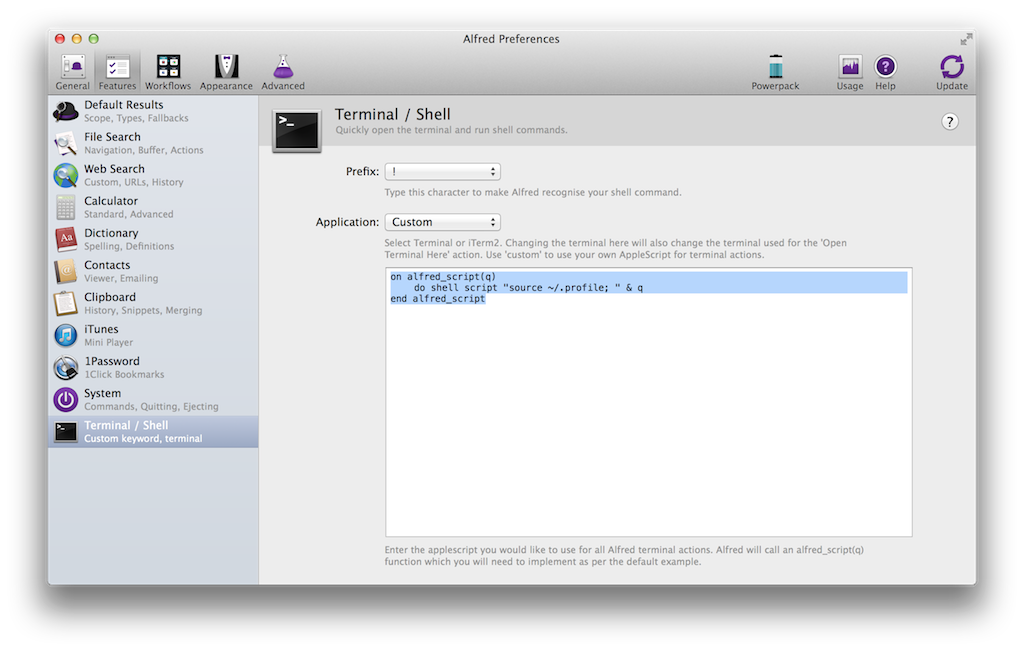
<li>Open Alfred Preferences (type <span class="standout_flat">alfred</span> into Alfred!)</li>
<li>Click Features</li>
<li>Click Terminal / Shell</li>
<li>Click the dropdown beside Application and choose Custom.</li>
</ol>
<p>5a. Paste the following into the text box:</p>
<!-- Force markdown for list followed by code block to generate correct HTML-->

<pre><code>on alfred_script(q)
    do shell script &amp; q
end alfred_script
</code></pre>
<p>5b. Paste the following into the text box:</p>
<pre><code>on alfred_script(q)
    do shell script "source ~/.profile; " &amp; q
end alfred_script
</code></pre>
<p><img src="/images/posts/alfred-shell-without-terminal.png"></p>
<p>Once you have done this, running shell commands with Alfred will no longer open a terminal tab. (Naturally, if there's an error in your shell command, you wouldn't be notified)</p>]]></content>
  </entry>
  <entry>
    <author>
      <name></name>
      <uri>None</uri>
    </author>
    <title type="html"><![CDATA[Improve iOS Battery Life]]></title>
    <link rel="alternate" type="text/html" href="https://motionobj.com/articles/improve-ios-battery-life" />
    <id>https://motionobj.com/articles/improve-ios-battery-life</id>
    <updated>2014-06-18T15:51:00Z</updated>
    <published>2014-06-18T15:51:00Z</published>
    <category scheme="None" term="iOS" />
    <summary type="html"><![CDATA[Improve iOS Battery Life]]></summary>
    <content type="html" xml:base="https://motionobj.com/articles/improve-ios-battery-life"><![CDATA[<p>I remember a time when my candy phones’ batteries could last few days. It isn’t so much that battery technology has not improved. On the contrary, the <a href="http://en.wikipedia.org/wiki/IPhone_5S" onclick="trackOutboundLink('http://en.wikipedia.org');">iPhone 5S with a battery capacity of 1560 mAh</a> has almost 2.5 times the battery capacity of the <a href="http://en.wikipedia.org/wiki/Nokia_8210" onclick="trackOutboundLink('http://en.wikipedia.org');">Nokia 8210 which has a battery capacity of 650 mAh</a>. But a <a href="http://daringfireball.net/linked/2012/09/17/iphone-5-geekbench" onclick="trackOutboundLink('http://daringfireball.net');">modern smart phones does so much</a> that it consumes so much power.</p>
<p>Most of us charge our iPhones daily, and some of us resort to charging it multiple times a day, every time we have the chance to.</p>
<p>For average use, most of the phone’s functionality and apps can be allowed to run as it is. But let’s take a look at a few factors that affect battery life:</p>
<h2>Cellular Connectivity</h2>
<p>Radios are used to connect to cellular networks (like 3G, LTE and CDMA) as well as WiFi networks, Global Positioning System (GPS) – for fetching your location – and Bluetooth for connecting with other devices supporting Bluetooth are one of the most battery-draining functionality in iOS devices.</p>
<p>One thing that might not be obvious: cellular radios work much harder to find a cellular signal when the signal is weak. So if you are in an area that has terrible or no reception for a few hours, it will probably help to enable Airplane mode.</p>
<h2>WiFi</h2>
<p>WiFi radios consume less power than cellular radio. On the surface, switching on your WiFi network adds another source of battery use. But if there is WiFi connectivity available, iOS will use WiFi for data transfer, which actually ends up consuming less power than using cellular data networks.</p>
<h2>Location</h2>
<p>Similar to other radios on iOS devices, the (Global Positioning System) GPS consumes battery when powered on and iOS manages whether the radio is powered up or down based on apps’ requests for location. A badly-designed app can ask for location too frequently and burn through battery much quicker than necessary.</p>
<h2><a name="bluetooth"></a>Bluetooth</h2>
<p>iOS devices supports <a href="http://en.wikipedia.org/wiki/Bluetooth_low_energy" onclick="trackOutboundLink('http://en.wikipedia.org');">Bluetooth LE</a> which consumes considerably less power than classic Bluetooth. As long as you are using accessories that support Bluetooth LE (and many do), battery consumption is very minimal.</p>
<h2>Personal Hotspot</h2>
<p>When another device, such as another iOS device or Mac, connects to your iOS device via Personal Hotspot, iOS has to keep both your WiFi and cellular radios powered on and this drains your battery drastically, so use it with care.</p>
<h2><a name="backgroundFetch"></a>Background Fetch</h2>
<p>To cut down on battery used by cellular and WiFi networks, iOS will try to power down the cellular and WiFi radios when they are not used. In order to still offer apps a way to fetch up to date data in the background so they can be presented immediately to users when users launch them (e.g. so you can read new emails in emails app as soon as you launch them), iOS has a feature called Background Fetch. When cellular or WiFi radios are already in use, iOS will occasionally prompt and allow apps to perform background fetch. i.e. iOS will be smart about letting apps access data in the background when it doesn’t cost too much battery.</p>
<p>This feature can be turned off without harming functionality, but it improves user experience so much and because iOS is smart about it, it can be worth keeping it enabled or just selectively disabling Background Fetch for certain apps in Settings app &gt; General &gt; Background App Refresh</p>
<h2><a name="pushNotifications"></a>Push Notifications</h2>
<p>Push notifications has been around in iOS for a long time, and like Background Fetch is managed by iOS so it is efficient in how it uses the battery. Disabling apps’ push notifications nowadays should be more about managing distractions – and stopping annoying ads – rather than saving battery.</p>
<h2>Screen brightness</h2>
<p>Naturally, a large, vibrant screen consumes loads of battery.</p>
<h2>Apps</h2>
<p>Besides specific features mentioned above, battery drain is often dependent on how apps works. Certain apps might be overly aggressive about fetching an accurate location or polling for updates unnecessary or upload or downloading overly large content that isn’t tailored for a mobile device, or basically doing unnecessary work. It isn’t very easy to identify these apps at the moment, but iOS 8 will help by listing battery usage by specific apps.</p>
<p>If you liked this, you might like my article: <a href="/articles/5-things-you-should-know-about-your-mobile-and-laptop-batteries/">5 Things You Should Know About Your Mobile and Laptop Batteries</a> too.</p>]]></content>
  </entry>
  <entry>
    <author>
      <name></name>
      <uri>None</uri>
    </author>
    <title type="html"><![CDATA[Alfred Workflow to Toggle WiFi]]></title>
    <link rel="alternate" type="text/html" href="https://motionobj.com/articles/alfred-workflow-to-toggle-wifi" />
    <id>https://motionobj.com/articles/alfred-workflow-to-toggle-wifi</id>
    <updated>2014-06-09T16:05:00Z</updated>
    <published>2014-06-09T16:05:00Z</published>
    <category scheme="None" term="OS X" />
    <summary type="html"><![CDATA[Alfred Workflow to Toggle WiFi]]></summary>
    <content type="html" xml:base="https://motionobj.com/articles/alfred-workflow-to-toggle-wifi"><![CDATA[<p>I often work on my Mac while running on battery and in the interest of reducing battery usage and reducing distractions from the internet, I often want to switch my WiFi on or off. I'm a <a href="/articles/using-keyboard-shortcuts-in-os-x-to-increase-productivity/">keyboard person</a> and will avoid reaching for my mouse if I can avoid it. Hence this Alfred workflow was born.</p>
<p><img src="/images/posts/alfred-workflow-toggle-wifi.png"></p>
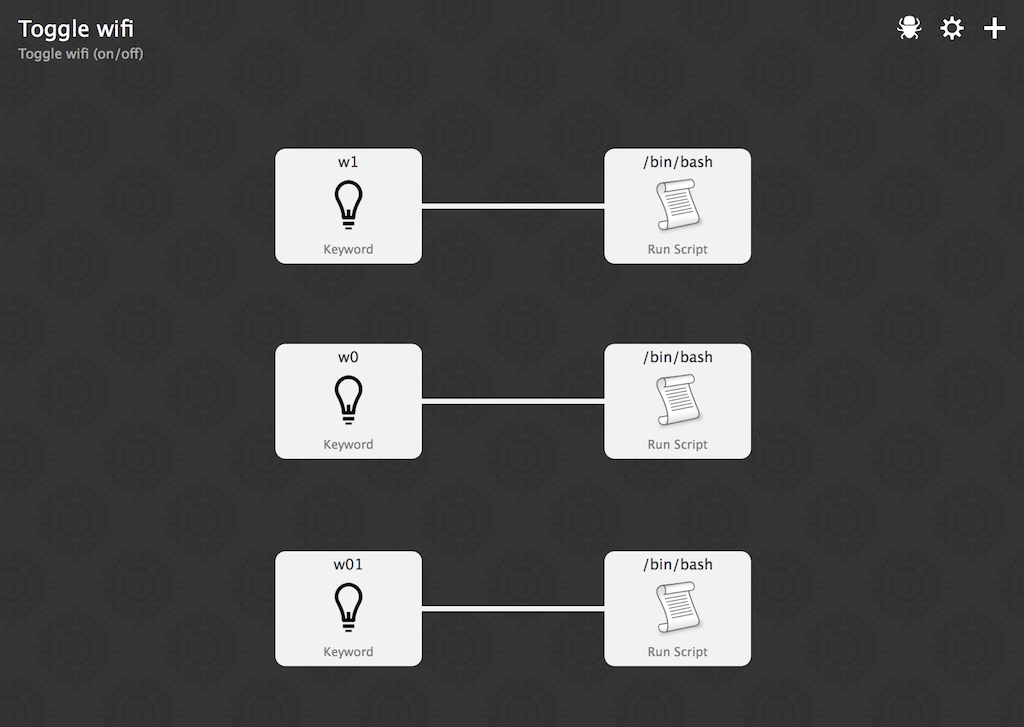
<p>This workflow for <a href="https://itunes.apple.com/us/app/alfred/id405843582?mt=12&at=10l4TP&ct=mo" onclick="trackOutboundLink('https://itunes.apple.com');">Alfred</a> provides 3 shortcuts:</p>
<ol>
<li><span class="standout_flat ">w1</span> switch on your WiFi</li>
<li><span class="standout_flat ">w0</span> switch off your WiFi</li>
<li><span class="standout_flat ">w01</span> switches off and then switches on your WiFi</li>
</ol>
<p>Usage of <span class="standout_flat ">w1</span> and <span class="standout_flat ">w0</span> are obvious. <span class="standout_flat ">w01</span> is very useful when you want to refresh the list of WiFi access points.</p>
<h2>Installation</h2>
<ol>
<li>Download <a href="/goodies/Toggle%20WiFi.alfredworkflow" onclick="trackInternalLink('/goodies/Toggle%20WiFi.alfredworkflow');">Toggle WiFi Alfred Workflow</a>.</li>
<li>Double click the downloaded Toggle WiFi.alfredworkflow file in Finder to install.</li>
</ol>
<p>If you liked this, you might like my <a href="/articles/alfred-workflow-to-capture-thoughts-and-ideas-to-a-text-file-without-disrupting-your-flow/">Alfred Workflow to Capture Thoughts and Ideas to a Text File Without Disrupting Your Flow</a> too.</p>]]></content>
  </entry>
  <entry>
    <author>
      <name></name>
      <uri>None</uri>
    </author>
    <title type="html"><![CDATA[Security Involving iOS]]></title>
    <link rel="alternate" type="text/html" href="https://motionobj.com/articles/security-involving-ios" />
    <id>https://motionobj.com/articles/security-involving-ios</id>
    <updated>2014-06-01T16:23:00Z</updated>
    <published>2014-06-01T16:23:00Z</published>
    <category scheme="None" term="iOS" />
    <summary type="html"><![CDATA[Security Involving iOS]]></summary>
    <content type="html" xml:base="https://motionobj.com/articles/security-involving-ios"><![CDATA[<p><img src="/images/posts/lock.jpg"></p>
<p>Almost every app, including Facebook, Twitter and email apps lets you login once and keep you logged in. These apps that are readily available at your fingertips on a device that has cellular or WiFi network access is what makes iOS and other modern smartphones so good. The convenience comes at a price though. If you aren't careful, terrible things can happen if your phone falls into the wrong hands.</p>
<p>Here's a couple of things that you can do to make your phone more secure, some on your device, some for internet accounts that you own:</p>
<p>Couple of things related to security for your iPhones, iPads and iPod touches:</p>
<p>1. Enable Touch ID</p>
<p>If you use an iPhone 5s, enable Touch ID. If you disabled it previously because it didn't work well enough, try again. A recent update <a href="http://support.apple.com/kb/DL1736" onclick="trackOutboundLink('http://support.apple.com');">iOS 7.1.1</a> includes improvements to Touch ID fingerprint recognition. It doesn't work perfectly for everyone, but if it does for you, using it comes at almost zero cost in terms of effort and time.</p>
<p>2. Enable Passcode Lock</p>
<p>If you can't get Touch ID to work or if your device doesn't support Touch ID, the next best option is to enable Passcode Lock (Settings app &gt; Passcode &gt; Turn Passcode On). It's understandably a hassle to have to enter a four digit passcode – if you disable Simple Passcode, you can have a longer passcode, and not limited to digits only – but depending on your usage pattern, it can be well worth the effort.</p>
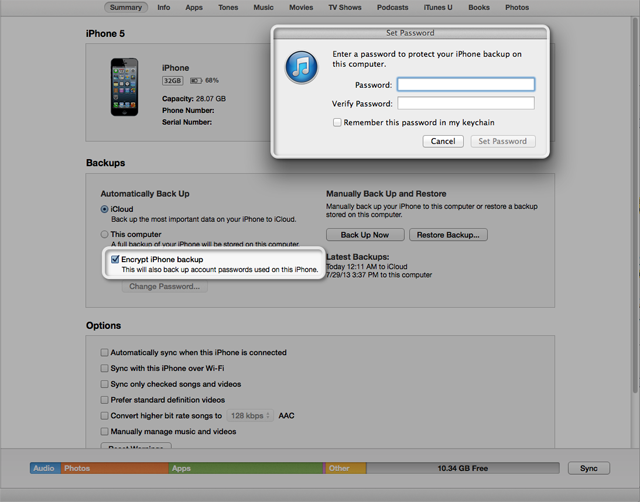
<p>3. Enable iOS encrypted backup</p>
<p>If you sync with iTunes, enable encrypted backup. <a href="http://support.apple.com/kb/ht4946" onclick="trackOutboundLink('http://support.apple.com');">Email account passwords, WiFi passwords and passwords you enter into websites and some application passwords will only be backed up if encrypted backup is enabled</a>.</p>
<p><img src="/images/posts/itunes-ios-encrypted-backup.png"></p>
<p>4. Don't worry about viruses and malware</p>
<p>This might sound counter-intuitive in an article talking about security, but the design of iOS (a sandbox security model) as well as its current state (apps are distributed through the app store, tied to developer accounts created with Apple) means that viruses and malware <a href="#footnote1" id="fn1" class="footnote"><sup>[1]</sup></a> are unlikely and rare, if any.</p>
<p><a name="antivirusApp"></a>5. Do not trust any app that claims to remove viruses and malware</p>
<p>Due to the iOS security model, it is not possible to create apps remove malware or virus scanners as we are used to on other computer platforms. Any app that claim to do this is likely to be lying and possibly malware themselves.</p>
<p>6. Be careful with granting permissions for access to address book, your location and photo library</p>
<p>iOS requires apps to prompt for your permission if they want to access certain private information such as your address book, your (or rather your device's) location, and photo library. Once you grant an app access to a certain item, the app will continue to have access until you disable it from within the Settings app &gt; Privacy.</p>
<p>7. Realize the effect on security if you have email set up on your device</p>
<p>When you lose your device which has email set up, a thief can request to reset your password for most internet accounts via email. Which brings us to security questions.</p>
<p>8. Enable security questions</p>
<p>If a service allows you to set up security questions, enable them. Security questions is a feature that forces anyone who tries to reset their password to provide answers to several preset questions. These questions/answers should be personal and only known to you. Apple supports security questions for iCloud ID. Log in to <a href="http://appleid.apple.com/" onclick="trackOutboundLink('http://appleid.apple.com');">My Apple ID</a> to set them up.</p>
<p>9. Be careful with granting access to your Twitter, Facebook and Google accounts</p>
<p>Instead of requiring you to create a separate account, some services lets you login using your Facebook, Twitter or Google accounts. While this is convenient, it also provides another vector for your internet accounts, i.e. getting access to your Twitter, Facebook or Google accounts could mean possible access to your other internet accounts.</p>
<p>It's good to clean up which apps and services have access to your Facebook, Twitter and Google accounts. Visit these links and revoke access if you don't want those apps/services to be able to access your account anymore:</p>
<ul>
<li><a href="https://www.facebook.com/settings?tab=applications" onclick="trackOutboundLink('https://www.facebook.com');">Facebook</a></li>
<li><a href="https://twitter.com/settings/applications" onclick="trackOutboundLink('https://twitter.com');">Twitter</a></li>
<li><a href="https://security.google.com/settings/security/permissions" onclick="trackOutboundLink('https://security.google.com');">Google</a> (if you have more than one Google account logged in, you can switch accounts by clicking at the top right of this screen)</li>
</ul>
<p>10. Use a different password for each service</p>
<p>One of the best thing you can do security-wise is to use a different password for each service that you sign up. It's improbable to remember so many different passwords so you'll have to use an app like <a href="https://itunes.apple.com/us/app/1password-password-manager/id568903335?mt=8&at=10l4TP&ct=mo" onclick="trackOutboundLink('https://itunes.apple.com');">1Password</a> which also has an <a href="https://itunes.apple.com/us/app/1password-password-manager/id443987910?mt=12&at=10l4TP&ct=mo" onclick="trackOutboundLink('https://itunes.apple.com');">OS X version</a>. 1Password also provides a tool for you to generate a long, harder to guess password string. In the event that you are lazy or it's really inconvenient to use a different password, at least make sure you never reuse passwords for critical accounts such as email services.</p>
<p><span id="footnote1">[1] </span> Note that we are talking only about devices that are not <a href="http://en.wikipedia.org/wiki/IOS_jailbreaking">jailbroken</a>. <a href="#fn1" class="footnote">&#x21A9;</a></p>]]></content>
  </entry>
  <entry>
    <author>
      <name></name>
      <uri>None</uri>
    </author>
    <title type="html"><![CDATA[Installing Apps on OS X]]></title>
    <link rel="alternate" type="text/html" href="https://motionobj.com/articles/installing-apps-on-os-x" />
    <id>https://motionobj.com/articles/installing-apps-on-os-x</id>
    <updated>2014-05-12T15:32:00Z</updated>
    <published>2014-05-12T15:32:00Z</published>
    <category scheme="None" term="OS X" />
    <summary type="html"><![CDATA[Installing Apps on OS X]]></summary>
    <content type="html" xml:base="https://motionobj.com/articles/installing-apps-on-os-x"><![CDATA[<p>There are several ways to install apps on the Mac.</p>
<p><img src="/images/posts/apps.jpg"></p>
<h2>App Store</h2>
<p>The Mac App Store is the most convenient way to install OS X software. It's also the safest, since you only need to save your credit card details with Apple or purchase iTunes Gift Cards. It's quick, and it's easy to use. Launch the App Store app that comes with your Mac and once you are logged in to your iCloud account, you can download free apps or buy paid ones. Its similarity to the iOS App Store makes it easier for iOS users to pick it up.</p>
<p>In addition, the App Store handles updates for you. If an app has an update, it is automatically downloaded and installed for you.</p>
<h2>Via Developers Directly from their own web store or web site</h2>
<p>Certain developers, especially more established ones – <a href="https://www.omnigroup.com" onclick="trackOutboundLink('https://www.omnigroup.com');">OmniGroup</a> and <a href="http://delicious-monster.com" onclick="trackOutboundLink('http://delicious-monster.com');">Delicious Monster</a> – already have web stores set up before the App Store was available in Jan 2011. While some of these developers have switched to offering their apps solely on the App Store, some of these developers continue to sell their apps through their web stores in addition to the Mac App Store. There are also certain apps do things that aren't allow by the App Store (e.g. apps that modify how the OS looks). Those apps are of course, only available via web stores.</p>
<p>One advantage of getting software from developers directly is that App Store doesn't support trial software. Some developers, when distributing their apps via their own stores, allow user to download a free trial version of the apps which they can purchase if they want to keep the software.</p>
<p>It's important to know that apps purchased on the App Store and via developer's own web stores aren't interchangeable, i.e. you can't buy from the developer directly then download an update from the App Store, and vice versa.</p>
<p>Software that are downloaded from web stores or web sites are made available in various forms:</p>
<h2>Installer</h2>
<p>Mac software is usually not distributed in installers. But when they are, they usually let you run through an installation wizard that takes you through the steps.</p>
<h2>DMG</h2>
<p>DMGs are Apple Disk Images. They have the file extension .dmg. For simplicity, you can think of them as similar to zip files.</p>
<p>Installation of apps distributed as DMGs is easy:</p>
<ol>
<li>Double click on the DMG file to mount it as a volume.</li>
<li>Open Finder and then click on it. The volume should appear on the left bar, under DEVICES.</li>
<li>You can drag the app into your /Applications directory. The /Applications directory should appear on the left bar, under FAVORITES.</li>
<li>Click on the eject button in Finder to unmount the DMG volume.</li>
<li>Delete the DMG file.</li>
</ol>
<h2>Homebrew, MacPorts and Fink</h2>
<p>These are more often used by more technical users who want to use tools that are command line-based. Homebrew is the more commonly used way of managing and installing such software.</p>
<p>We wouldn't cover how to use them in this post, but it is useful to at least know about them.</p>
<h2>Removing and Uninstalling Apps</h2>
<p>Most apps can be removed by just deleting them from the /Applications directory. This is rare and only if an app was not installed via the App Store: if the app was installed as a folder in /Applications, browse through it and see if there's a uninstaller which you should run.</p>]]></content>
  </entry>
  <entry>
    <author>
      <name></name>
      <uri>None</uri>
    </author>
    <title type="html"><![CDATA[Couple of Random iOS Tips]]></title>
    <link rel="alternate" type="text/html" href="https://motionobj.com/articles/couple-of-random-ios-tips" />
    <id>https://motionobj.com/articles/couple-of-random-ios-tips</id>
    <updated>2014-04-28T08:30:00Z</updated>
    <published>2014-04-28T08:30:00Z</published>
    <category scheme="None" term="iOS" />
    <summary type="html"><![CDATA[Couple of Random iOS Tips]]></summary>
    <content type="html" xml:base="https://motionobj.com/articles/couple-of-random-ios-tips"><![CDATA[<p>The iPhone has been released for 7 years now and we are now at iOS 7.1, waiting for the <a href="http://en.wikipedia.org/wiki/Apple_Worldwide_Developers_Conference" onclick="trackOutboundLink('http://en.wikipedia.org');">announcement of iPhone 6 and iOS 8</a>. As new features appear or as old ones evolve, it’s sometimes hard to track all the useful tricks in the current version of the OS. So here’s a few random ones:</p>
<ol>
<li>Spotlight search is accessible by pulling down from the middle of the screen (and not from the top of the screen, which reveals <a href="http://en.wikipedia.org/wiki/Notification_Center" onclick="trackOutboundLink('http://en.wikipedia.org');">Notification Center</a>).</li>
<li>Tap with 2 fingers when editing text, to select the paragraph.</li>
<li>When entering a URL into a textbox, such as in Mobile Safari, tap and hold the . button and there’ll be options to enter .com, etc.</li>
<li>The iMessage app sends both text (SMS) and iMessages. When the bubble of a message you sent is green, it was sent as text and when it’s blue, that message was sent as an iMessage.</li>
<li>You can create your own custom ringtones – for e.g. by trimming a section of a song with iTunes – on the desktop and then sync it to your iPhone.</li>
<li>You can search for text in Mobile Safari by tapping the URL bar, typing in your search term, then scroll down the list and look for the last section named “On This Page”.</li>
<li>When the built-in flashlight is on, tap the camera button in the lock screen to off it.</li>
<li>In Mobile Safari, when the URL bar is minimized and the bottom toolbar is hidden, tap either the status bar or the bottom of the screen to reveal them.</li>
</ol>
<p>Have more interesting tips for us to add? <a href="mailto:hello@motionobj.com">Let us know</a>.</p>]]></content>
  </entry>
  <entry>
    <author>
      <name></name>
      <uri>None</uri>
    </author>
    <title type="html"><![CDATA[A Few Nice iOS Games]]></title>
    <link rel="alternate" type="text/html" href="https://motionobj.com/articles/a-few-nice-ios-games" />
    <id>https://motionobj.com/articles/a-few-nice-ios-games</id>
    <updated>2014-04-21T10:30:00Z</updated>
    <published>2014-04-21T10:30:00Z</published>
    <category scheme="None" term="iOS" />
    <summary type="html"><![CDATA[A Few Nice iOS Games]]></summary>
    <content type="html" xml:base="https://motionobj.com/articles/a-few-nice-ios-games"><![CDATA[<p>Here's a few games I have enjoyed on my iPhone lately:</p>
<h2><a href="https://itunes.apple.com/us/app/threes!/id779157948?mt=8&at=10l4TP&ct=mo" onclick="trackOutboundLink('https://itunes.apple.com');">Threes</a></h2>
<p><a href="https://itunes.apple.com/us/app/threes!/id779157948?mt=8&at=10l4TP&ct=mo" onclick="trackOutboundLink('https://itunes.apple.com');"><img src="/images/posts/threes.png"></a></p>
<p><a href="https://itunes.apple.com/us/app/threes!/id779157948?mt=8&at=10l4TP&ct=mo" onclick="trackOutboundLink('https://itunes.apple.com');">Threes</a> is a wonderful little puzzle game that has high replay value, created by <a href="http://twitter.com/ashervo" onclick="trackOutboundLink('http://twitter.com');">Asher Vollmer</a>. You slide tiles with numbers on them around, combining them to form a bigger number. Your goal is to get a high score by forming the largest number possible. You might also have heard of one or multiple clones of it called 2048. Read this <a href="http://asherv.com/threes/threemails/" onclick="trackOutboundLink('http://asherv.com');">detailed writeup by the developer of Threes</a> to gain an understanding of the effort and polish behind a game – and similar, behind many seemingly simple ideas – and the terrific implementation and number of iterations needed to bring the idea to life. If you haven't, consider purchasing the game and support original work.</p>
<h2><a href="https://itunes.apple.com/us/app/dots-a-game-about-connecting/id632285588?mt=8&at=10l4TP&ct=mo" onclick="trackOutboundLink('https://itunes.apple.com');">Dots</a></h2>
<p><a href="https://itunes.apple.com/us/app/dots-a-game-about-connecting/id632285588?mt=8&at=10l4TP&ct=mo" onclick="trackOutboundLink('https://itunes.apple.com');"><img src="/images/posts/dots.png"></a></p>
<p><a href="https://itunes.apple.com/us/app/dots-a-game-about-connecting/id632285588?mt=8&at=10l4TP&ct=mo" onclick="trackOutboundLink('https://itunes.apple.com');">Dots</a> is a delightful game by <a href="http://betaworks.com" onclick="trackOutboundLink('http://betaworks.com');">Betaworks</a>. You join neighboring dots of the same color with your finger to dismiss them. The more you dismiss, the higher your score. Like Threes, this looks like a simple game, but it's fun and has great replay value.</p>
<h2><a href="https://itunes.apple.com/us/app/sometimes-you-die/id822701037?mt=8&at=10l4TP&ct=mo" onclick="trackOutboundLink('https://itunes.apple.com');">Sometimes You Die</a></h2>
<p><a href="https://itunes.apple.com/us/app/sometimes-you-die/id822701037?mt=8&at=10l4TP&ct=mo" onclick="trackOutboundLink('https://itunes.apple.com');"><img src="/images/posts/sometimes-you-die.png"></a></p>
<p>I'm still working this one through, but the sound effects and alternative theme of the game is quite refreshing. <a href="https://itunes.apple.com/us/app/sometimes-you-die/id822701037?mt=8&at=10l4TP&ct=mo" onclick="trackOutboundLink('https://itunes.apple.com');">Sometimes You Die</a> is created by <a href="http://www.kamibox.de/about" onclick="trackOutboundLink('http://www.kamibox.de');">Philipp Stollenmayer</a>.</p>]]></content>
  </entry>
  <entry>
    <author>
      <name></name>
      <uri>None</uri>
    </author>
    <title type="html"><![CDATA[Using Keyboard Shortcuts in OS X to Increase Productivity]]></title>
    <link rel="alternate" type="text/html" href="https://motionobj.com/articles/using-keyboard-shortcuts-in-os-x-to-increase-productivity" />
    <id>https://motionobj.com/articles/using-keyboard-shortcuts-in-os-x-to-increase-productivity</id>
    <updated>2014-04-14T13:12:00Z</updated>
    <published>2014-04-14T13:12:00Z</published>
    <category scheme="None" term="OS X" />
    <summary type="html"><![CDATA[Using Keyboard Shortcuts in OS X to Increase Productivity]]></summary>
    <content type="html" xml:base="https://motionobj.com/articles/using-keyboard-shortcuts-in-os-x-to-increase-productivity"><![CDATA[<p>To become more productive while using a Mac, one of the most important thing is to use keyboard shortcuts.</p>
<p><img src="/images/posts/keyboard.jpg"></p>
<h2>Basic Shortcuts That Work With Text</h2>
<p>Start with the basic and common ones that usually work across most apps:</p>
<ul>
<li>Copy (Cmd+C) &amp; paste (Cmd+P) as well as cut (Cmd+X) &amp; paste.</li>
<li>Select All (Cmd+A)</li>
<li>Find (Cmd+F)</li>
<li>Find Again (Cmd+G)</li>
<li>Undo (Cmd+Z)</li>
<li>Redo (Cmd+Shift+Z)</li>
<li>Tab while in a text box and focus should move to the next text box. This is really useful when filling up forms</li>
</ul>
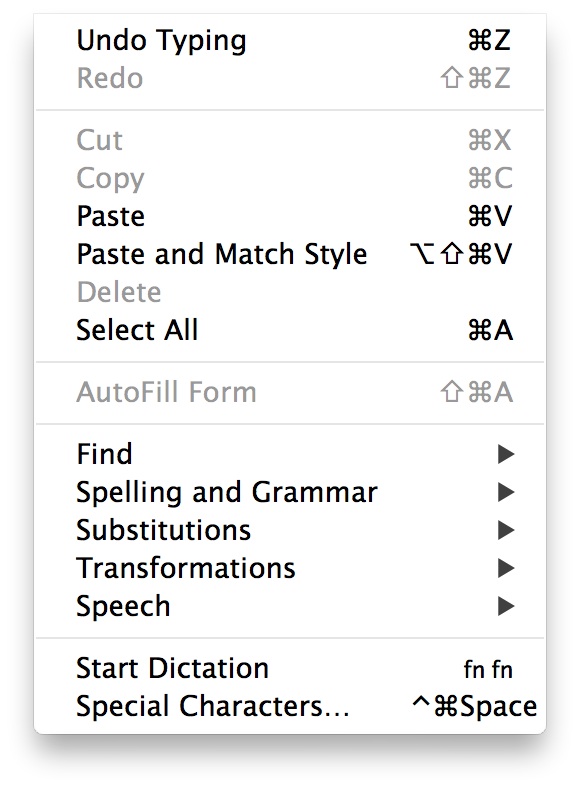
<p>You can pick up most of these by looking at the shortcut displayed beside their menu item. Commit a few to memory and you’ll remember them once you use them more. Then learn a few more, repeat the process.</p>
<p><img src="/images/posts/menu-shortcuts.jpg"></p>
<h2>Common Across Mac Apps</h2>
<ul>
<li>Preferences (Cmd+,)</li>
<li>Hide App (Cmd+H)</li>
<li>Minimize App to Dock (Cmd+M)</li>
</ul>
<h2>System-Wide</h2>
<ul>
<li>Switch to previous app (Cmd+tab). Hold Cmd and release tab to show the app switcher, then press tab repeatedly to go through open apps. Tip: while you hold Cmd, you can also press Q to quit the current app in the app switcher.</li>
<li>Switch to another window in the current app (Cmd+`). Hold Cmd and release `, then press ` repeatedly to go through windows in current app.</li>
<li>Show open app windows using Mission Control (F3)</li>
<li>Show windows of current app using Mission Control  (Ctrl+F3))</li>
<li>Show desktop using Mission Control (Cmd+F3). This is very useful when you need to move files between your desktop and another folder you have open in Finder.</li>
</ul>
<h2>Custom Shortcuts</h2>
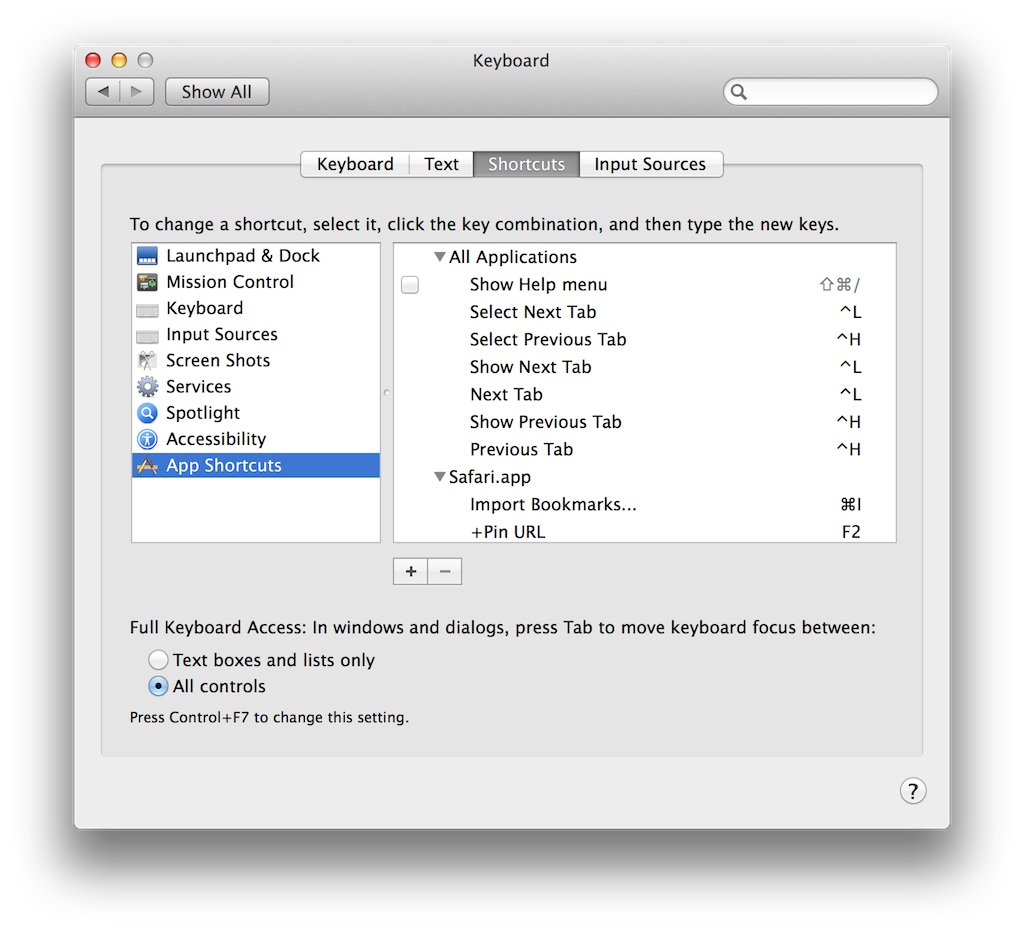
<p>Once you learn most of the common shortcuts, you should learn how to create keyboard shortcuts of your own for menu actions you use often in an app, but which the app doesn’t provide a shortcut for.</p>
<p><img src="/images/posts/custom-keyboard-shortcuts.jpg"></p>
<p>You can add custom keyboard shortcuts in System Preferences &gt; Keyboard &gt; Shortcuts &gt; App Shortcuts. Custom keyboard shortcuts can be added either across all apps or for specific apps. They work in the same way, you create a shortcut by hitting the + button and keying in the title of the menu action you want to create a shortcut for, as well as the keyboard shortcut to use. One that I set up across all apps and find very useful is Select Previous Tab (Ctrl+H) and Select Next Tab (Ctrl+L). I’m used to keeping my right hand fingers on the keyboard home row, so hitting H and L comes easily to me and I can move to the previous tabs and next tabs in many apps that support tabs such as Safari and Chrome. Be careful to type the menu item title exactly as you see it in the app.</p>
<p>Another useful keyboard shortcut I have set up is Cmd+S (I don’t use save that much, so I override it, you can choose something else) for “Start Speaking” in Safari. What this does is to invoke OS X’s text to speech functionality. I can select a word or a passage of text and hit Cmd+S and it will start reading it out loud. Sometimes, I accidentally make it read a very long passage and want it to stop, so I have “Stop Speaking” mapped to Cmd+Shift+S.</p>
<p>In additional to defining shortcuts for menu items that did not have keyboard shortcuts defined, you can also change existing keyboard shortcuts. For e.g. I like to change the 3 Mission Control shortcuts to the old shortcut keys that were the defaults in older OS X versions (F9, F10 and F11).</p>
<p>Have fun and be productive with your new keyboard shortcuts!</p>]]></content>
  </entry>
  <entry>
    <author>
      <name></name>
      <uri>None</uri>
    </author>
    <title type="html"><![CDATA[Customizing Your OS X Dock]]></title>
    <link rel="alternate" type="text/html" href="https://motionobj.com/articles/customizing-your-os-x-dock" />
    <id>https://motionobj.com/articles/customizing-your-os-x-dock</id>
    <updated>2014-03-23T13:53:00Z</updated>
    <published>2014-03-23T13:53:00Z</published>
    <category scheme="None" term="OS X" />
    <summary type="html"><![CDATA[Customizing Your OS X Dock]]></summary>
    <content type="html" xml:base="https://motionobj.com/articles/customizing-your-os-x-dock"><![CDATA[<p><img src="/images/posts/dock-bottom.jpeg"></p>
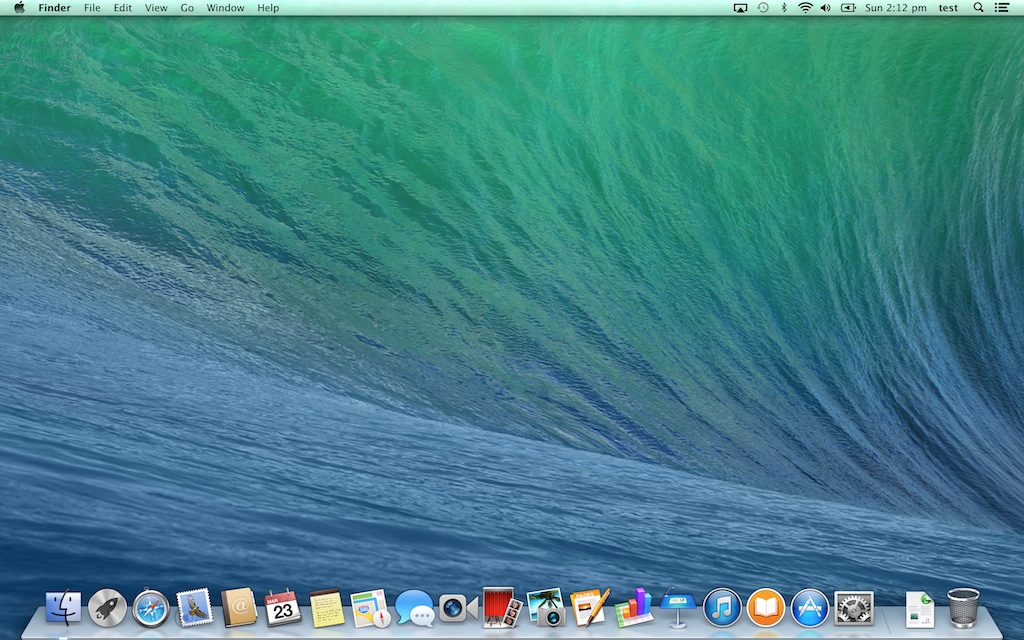
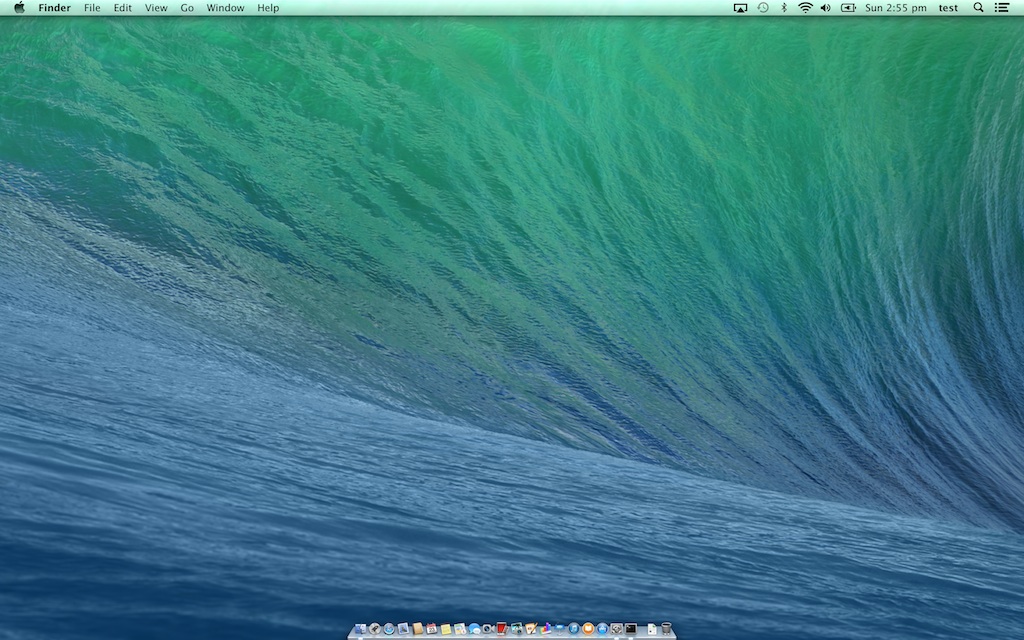
<p>The OS X Dock has been around a long time and many people use it as an app launcher and app switcher.</p>
<p><img src="/images/posts/dock-context-menu.jpeg"></p>
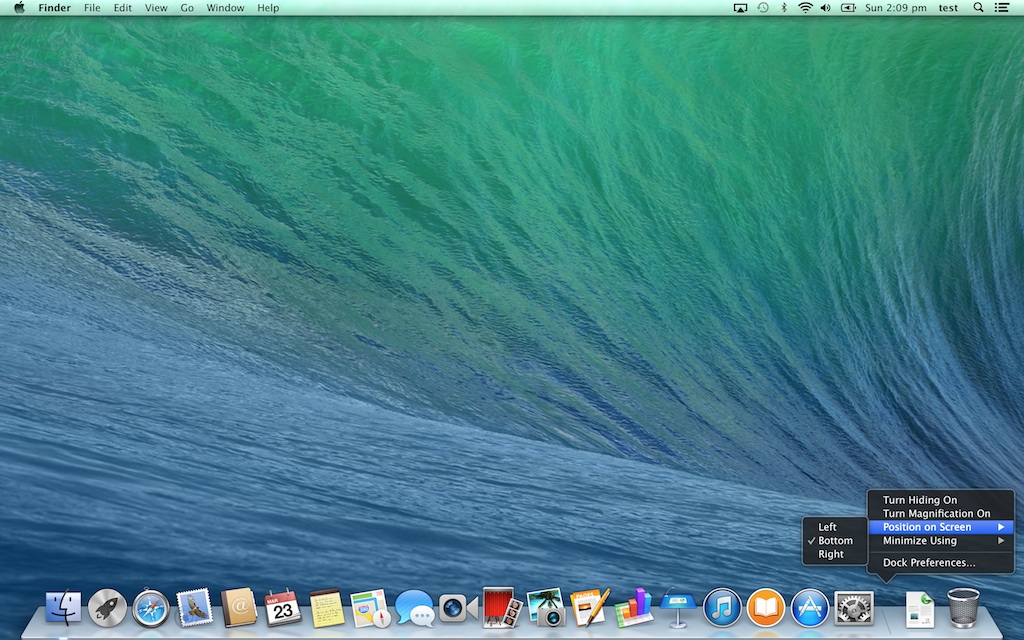
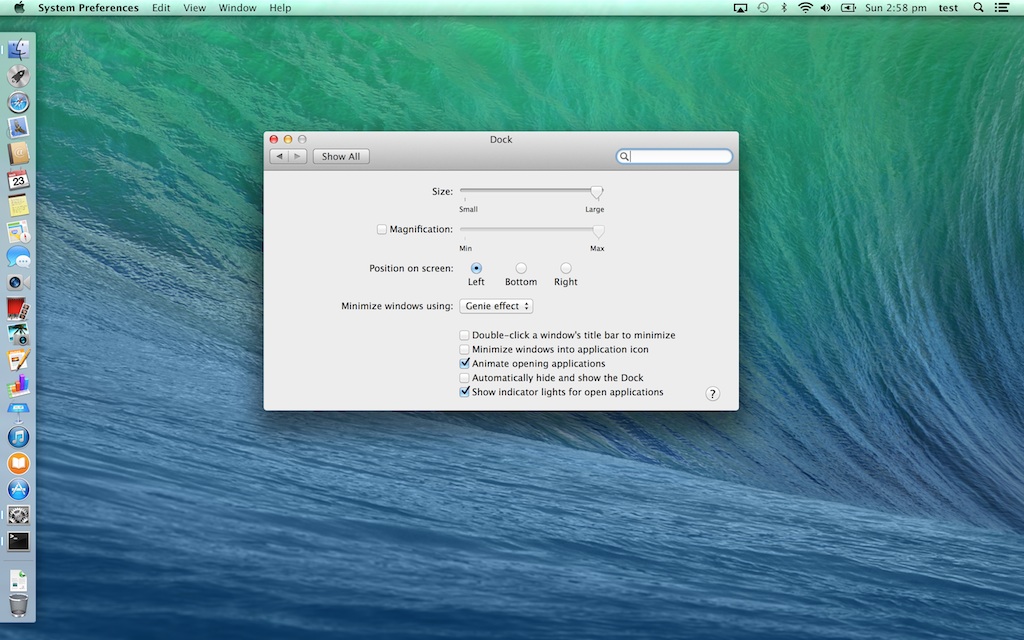
<p>There's a few things you can customize about the Dock. If you <a href="http://en.wikipedia.org/wiki/Contextual_menu" onclick="trackOutboundLink('http://en.wikipedia.org');">Ctrl-click</a> on the Dock, near the split at the right of the Dock, you can choose <span class="standout_flat">Dock Preferences</span> to customize it.</p>
<p><img src="/images/posts/dock-left-preferences.jpeg"></p>
<p>By default, the Dock is placed at the bottom of the screen, you can position it on the left or right of the screen instead. You can also make the Dock automatically hide itself and reveal itself when you move the cursor over where the Dock should be, as well as tweak the size of the Dock.</p>
<p>This is where it gets interesting for users who like to customize their environment to their liking. Some people position their Dock to the left or right of the screen since modern screens tend to be wider than before. Take for example, the 11” Macbook Air, with a native resolution of 1366 by 768. Running Safari, the menu bar, Safari's title bar as well as address bar and tabs take up about 100px so the remaining usable vertical real estate (668px) is less than half of the horizontal (1366px).</p>
<p>Some of us choose to make the Dock smaller and rely on Magnification to still make it useful. Auto hiding it helps too.</p>
<p><img src="/images/posts/dock-smallest.jpeg"></p>
<p>Some of us go one step further and totally ditch the Dock, instead relying on other mechanisms such as Spotlight or app launchers to run apps. So we auto hide the Dock and make it as small as possible</p>
<p>You still see that it's there when you move your cursor over it. If you like to push things a little further, it's time to print out Terminal. Launch the Terminal app and type in this 2 lines:</p>
<div class="pygments_murphy"><pre>defaults write com.apple.dock tilesize -integer 1
killall Dock
</pre></div>

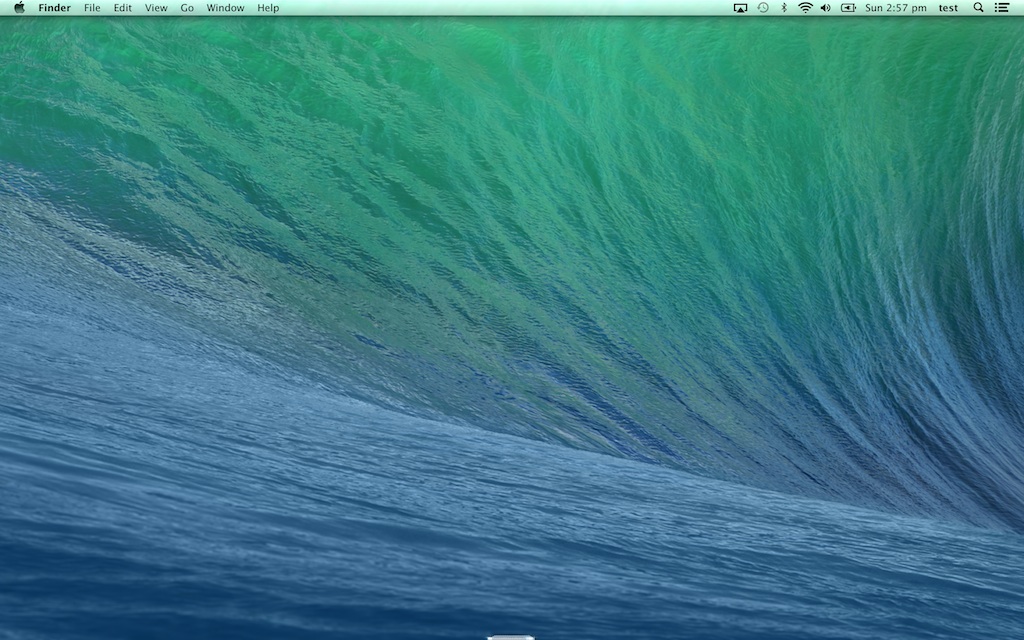
<p>The first line does the same thing as changing the size of the Dock in preferences, but the UI doesn't let you set it to the smallest possible size (1). The second line just restarts the Dock and use the new size.</p>
<p>There you have it, the tiniest Dock possible:</p>
<p><img src="/images/posts/dock-tiny.jpeg"></p>]]></content>
  </entry>
</feed>