How to Use OmniDiskSweeper on macOS to Find Large Files
OmniDiskSweeper is available again. I also make SimplyDiskSweeper, a US$14.99 Mac App Store alternative with ranked Finder-like columns and confirmed moves to Trash.
This is the second post of a series of articles on reducing disk space usage on your Mac. Read the first post, Reducing Disk Usage on Your Mac by Processing Your Videos if you haven’t.
Use OmniDiskSweeper like this: download it, scan your disk, open the biggest folders, and delete only files you understand.
Quick answers
What is OmniDiskSweeper? OmniDiskSweeper is a free Mac disk sweeper from The Omni Group. It scans a drive or folder and lists the largest folders first so you can see where the space went.
How do I use OmniDiskSweeper on macOS? Open the app, choose your main disk, wait for the scan to finish, then drill into the largest folders. Use Finder to inspect files before deleting anything.
Is OmniDiskSweeper safe? Scanning does not delete files. Removing a file is the consequential step. Start with files you created or downloaded, and leave system folders alone unless you know exactly what they contain.
In order to reduce disk usage, you need to know what is unnecessarily using up disk space. OmniDiskSweeper from The Omni Group is great for figuring this out. Download OmniDiskSweeper directly here.
Running OmniDiskSweeper
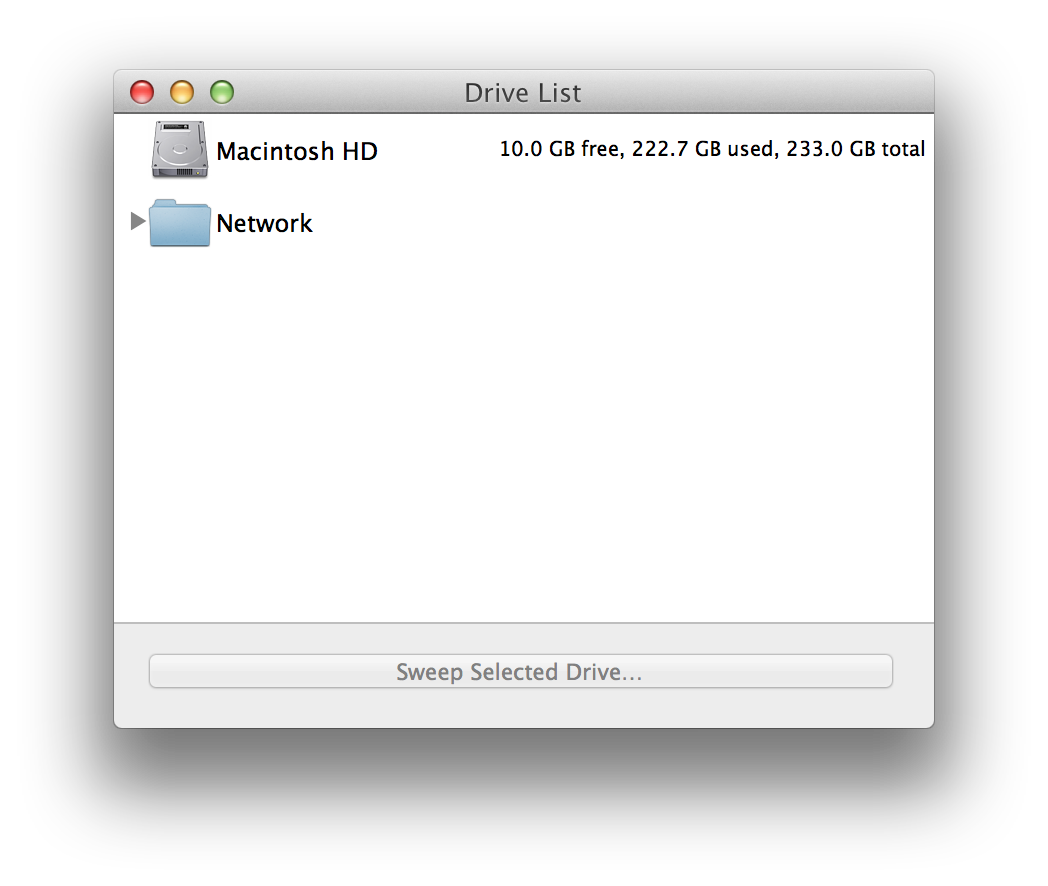
Launch the app and it’ll show you a list of drives. Chances are the first entry will read “Macintosh HD”. That is your hard disk/SSD. Double click on it to start scanning your drive contents. If you have multiple hard disks or have external disks attached, you will see more than one entry.
How to clean disk space on macOS with OmniDiskSweeper
OmniDiskSweeper is a good first step when you need to clean disk space on macOS but do not know where the storage went.
Use these steps:
- Open OmniDiskSweeper.
- Scan your main drive.
- Sort through the largest folders first.
- Open suspicious folders in Finder.
- Delete only files you recognize and can replace.
That last step matters. OmniDiskSweeper shows disk usage clearly, but it does not know which files are important to you.
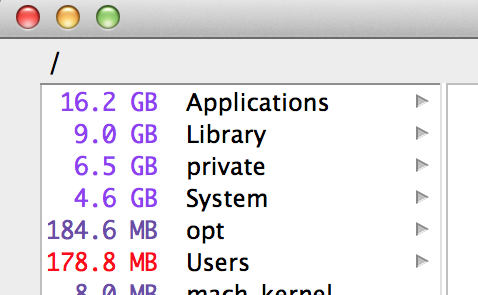
Subject to the size and type of your disk, OmniDiskSweeper should take at least a few minutes to run. While it’s running, the title bar will say it’s “sizing” and you’ll see that the numbers besides each directory have different colors. The numbers indicate how much space the directory is taking up, with a still-scanning number indicating that directory is still being scanned.
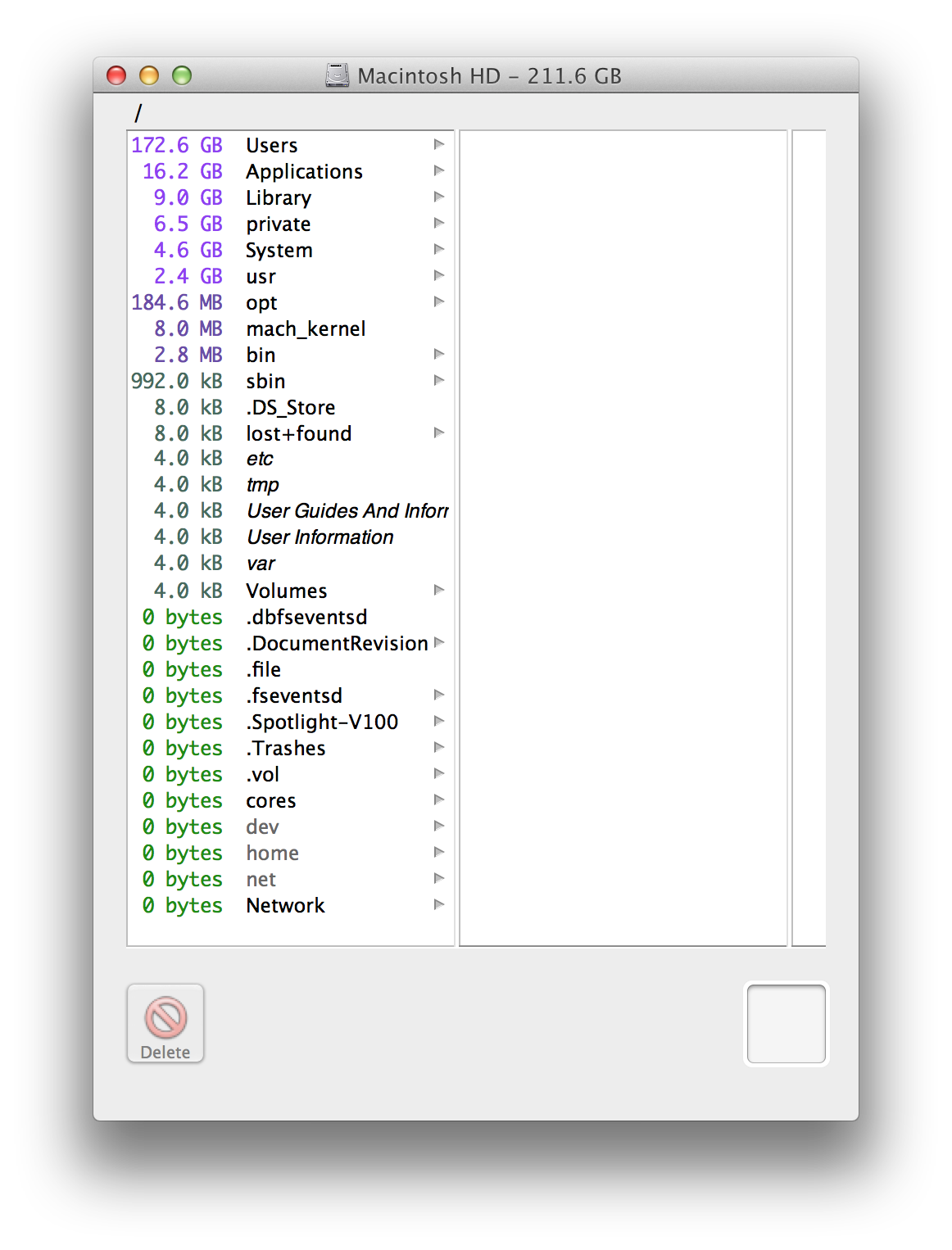
Once the app is done, the word “sizing” will no longer be shown in the title bar. In the screenshot above, you’ll see that in my case, the /Users directory is taking up a whopping 172.6 GB of my hard disk. That can present some good opportunity for clearing up my disk. You can browse around by clicking.
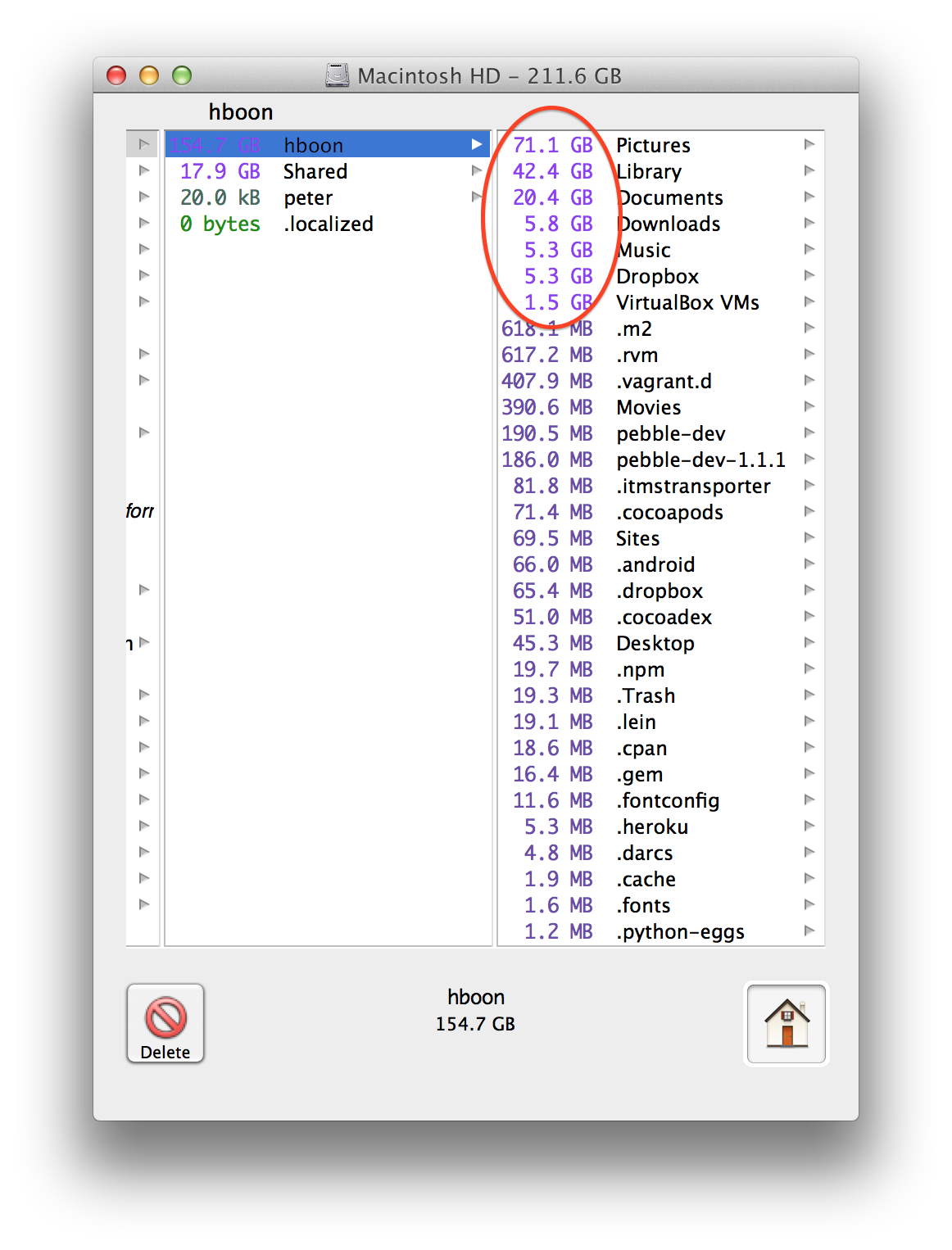
For illustration purposes, let’s say I want to delay cleaning my Pictures and Documents directories for the time being. Taking up 5.8GB, the Downloads directory is low hanging fruit. Since this is where the Mac saves downloaded files, I double-click the directory, open it in Finder, and verify that there isn’t any file that I want to keep. I then empty the entire Downloads directory.
Repeat this process for the bigger directories that aren’t managed by the system, and you’ll be able to trim a lot of space from your drive. Be more careful with Library, photo libraries, app support folders, and anything you do not recognize.
Is OmniDiskSweeper free?
Yes. OmniDiskSweeper is a free Mac disk usage utility from The Omni Group. It scans folders and shows what is taking up space, but it does not decide what should be deleted for you.
OmniDiskSweeper or SimplyDiskSweeper?
Keep OmniDiskSweeper when you want a free direct download that lists disk contents from largest to smallest. The Omni Group’s current page lets you download the stable app directly.
Try SimplyDiskSweeper when you prefer a current macOS 15+ app from the Mac App Store, ranked Finder-like columns, per-column filtering and keyboard navigation, multi-selection, and a confirmation before selected items move to Trash. SimplyDiskSweeper costs US$14.99 upfront, so it is not the budget choice.
| Decision | OmniDiskSweeper | SimplyDiskSweeper 0.16.0 |
|---|---|---|
| Price | Free | US$14.99 paid once |
| Distribution | Direct download from The Omni Group | Mac App Store |
| Main workflow | Largest-first nested columns; open or move an item to Trash | A chosen folder in ranked Finder-like columns; filter, navigate, multi-select, confirm, then move selections to Trash |
| Scope statement | Shows files on the selected drive or folder | Reports allocated space for accessible entries inside the chosen folder |
| Choose when | Free direct-download columns are enough | App Store sandboxing, filters, keyboard navigation, multi-selection, and explicit outcome handling matter |
Neither app can tell whether a personal file is safe to remove. Both help locate large items; I still inspect the file and keep a backup when it matters.
Choose the distribution and workflow you want
OmniDiskSweeper comes from The Omni Group’s website. The stable download is free, and the current product page still describes the same narrow job: show files largest to smallest, then let me open an item or move it to Trash. Omni publishes separate 1.16 test builds for macOS 14 or later, but those pages label the builds unstable and direct users to the main site for the stable release.
SimplyDiskSweeper is distributed through the Mac App Store and runs in the App Sandbox. I choose the folder or location it can access. The app shows allocated space for accessible entries in that scope, preserves the parent path in Finder-like columns, and lets me filter and navigate each column with the keyboard.
The free OmniDiskSweeper workflow is enough when I only need ranked columns and direct download is acceptable. SimplyDiskSweeper makes sense when the App Store boundary, selected-folder scope, per-column filtering, multi-selection, and explicit Trash outcome handling are worth its US$14.99 price.
Size does not equal reclaimable space
OmniDiskSweeper and SimplyDiskSweeper help find large files. A displayed folder total can include items with filesystem, permission, cloud, snapshot, or application behavior that changes how much free space appears after cleanup.
I treat the number as a place to investigate. I reveal the item in Finder, check which app or project owns it, and decide whether I have another copy. After moving a small set to Trash, I verify the Mac before emptying Trash. Neither app replaces that check.
For visual alternatives, the Mac disk space analyzer comparison also covers DaisyDisk and GrandPerspective. The DaisyDisk alternative page compares its sunburst map with SimplyDiskSweeper’s columns.
What is safe to delete?
Start with folders you own and understand, such as Downloads, old archives, exported videos, disk images, and duplicate installers. Be careful with system folders, application support folders, photo libraries, and anything in ~/Library unless you know exactly what the files are for.
If the Finder-like workflow fits, see SimplyDiskSweeper’s current screen and Trash demo.
Want more articles like this in your inbox? Join our newsletter to receive free email updates, tips and tricks related to iOS & macOS X.