A MacWhisper alternative when you want a searchable meeting archive
Keep MacWhisper if you need one Mac app for file transcription, dictation, meeting recording, broad model and export choices, AI prompts, or workflow integrations. Try MinuteFile when the recording is already complete and the job is to correct, retain, and literally search a local meeting archive.
I make MinuteFile for Mac. I compare the workflow each app owns. Transcript accuracy still depends on the recording, model, settings, and review; I do not rank the apps by an invented accuracy score.
MacWhisper facts and pricing verified August 1, 2026, from the MacWhisper site and MacWhisper support documentation. MinuteFile facts verified against version 0.1.8 and its privacy page on the same date.
Choose between a transcription workstation and an archive
MacWhisper covers a wide transcription surface. Its current direct-download app transcribes audio and video files, records from a microphone, offers system-wide dictation, can record meetings, watches folders, exports several document and subtitle formats, and connects to AI services and other workflows. MacWhisper Pro currently costs €64 for a pay-once licence with lifetime updates.
MinuteFile has a smaller job. It starts with folders containing completed recordings or existing transcripts, then keeps the editable transcript, recording reference, manual People, bookmarks, and literal search together on the Mac. MinuteFile does not capture a meeting, provide dictation, create summaries or action items, or chat with the transcript.
| Workflow question | MacWhisper | MinuteFile 0.1.8 |
|---|---|---|
| What can start the job? | Audio/video files, microphone input, dictation, meeting recording, watched folders, and other documented inputs | A completed recording folder or an existing VTT, SRT, timestamped-text, or plain-TXT transcript |
| Where does transcription run? | Locally by default with a downloaded model; optional cloud transcription is also available | On the Mac after the selected model is installed |
| How are speakers handled? | Supported modes can automatically group detected speakers; labels can then be renamed or merged | Meeting labels and reusable People are assigned manually; MinuteFile does not identify a person from their voice |
| What happens after transcription? | Edit, search within the transcription, export, translate, prompt AI services, or send output through configured workflows | Correct the transcript, keep it with the recording, assign People, add bookmarks, run literal archive search, and export TXT, Markdown, or HTML |
| What does it cost? | Free version; Pro currently €64 paid once with lifetime updates | Three-recording transcription trial; US$39 perpetual licence paid once |
The table does not score accuracy. Automatic transcription and speaker grouping can be wrong in either workflow, so I review important text and names against the recording.
MacWhisper is the better choice for the broader job
MacWhisper is the better fit when transcription begins before the file exists. The direct-download version includes system-wide dictation and meeting recording. Its meeting-recording documentation currently labels automatic meeting recording as beta, and it recommends manual recording for critical meetings.
MacWhisper also exposes more transcription choices. The current product page lists broad language, model, export, batch, subtitle, translation, AI-service, command-line, and integration features. Those are useful when I need to produce files in several formats, drive transcription from a script, dictate into another app, or run a prompt against one transcript.
MinuteFile does none of those jobs. Choosing MinuteFile for a live meeting, dictation, automated summary, or translation workflow would leave the first part of the work unfinished.
MinuteFile fits the completed-folder archive job
MinuteFile treats the recording folder as the record. I can import one folder or a parent folder containing completed meetings. A watched folder is optional and starts in inbox-only mode; I must explicitly choose a model and language before allowing sequential local transcription.
The concrete workflow is:
- Put the completed recording and related transcript or caption files in one folder.
- Import that folder into MinuteFile, or let an inbox-only watched folder detect it.
- Use an existing VTT, SRT, timestamped-text, or plain-TXT transcript, or transcribe the recording locally with an installed model.
- Listen beside the saved transcript, correct the text, and keep meeting-only speaker labels or assign reusable People myself.
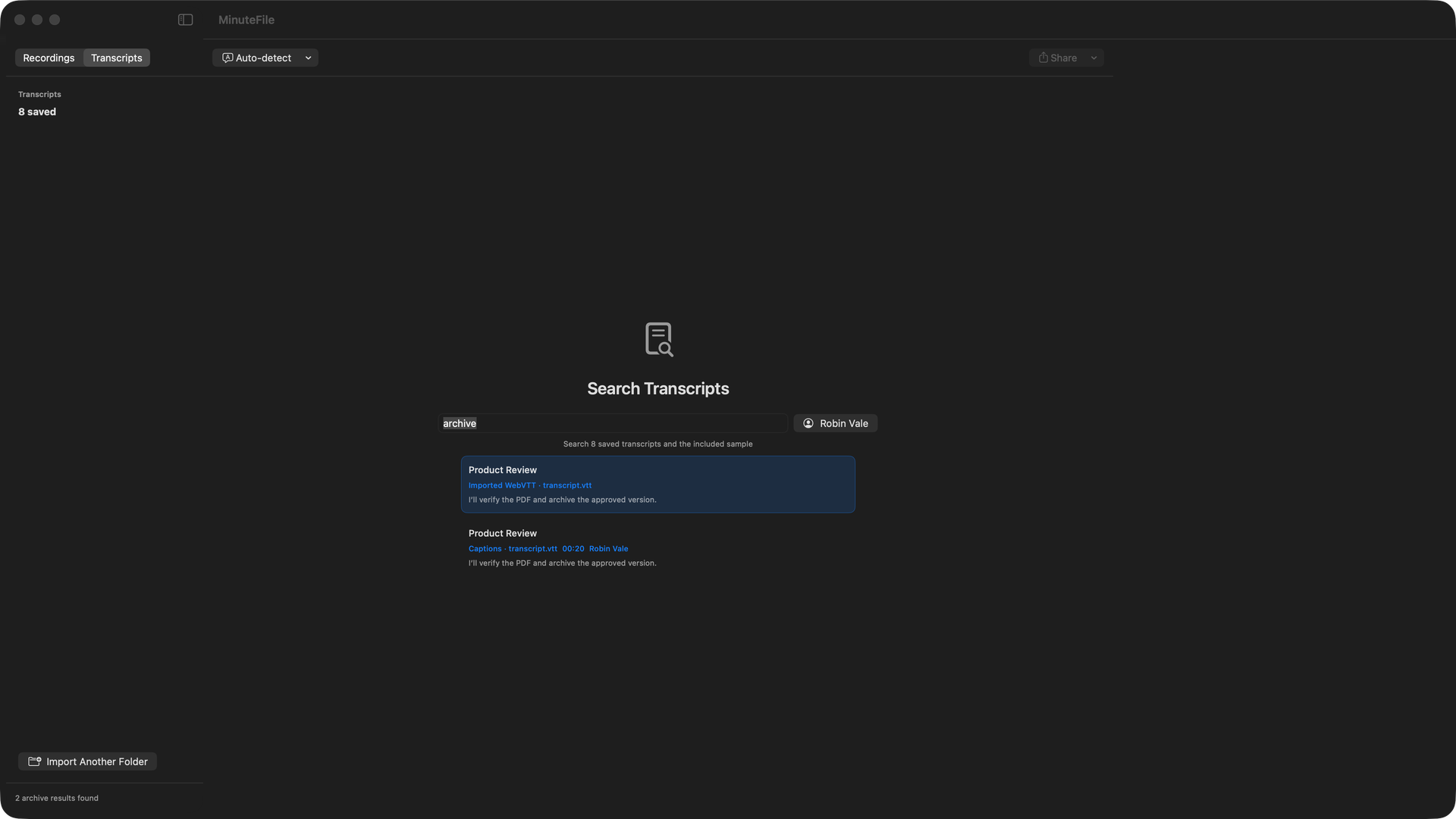
- Search for a literal word or phrase across the archive, optionally filter by an assigned Person, then export a TXT, Markdown, or HTML copy.
An existing transcript does not consume one of the three trial transcriptions. VTT, SRT, and recognised timestamped text retain their known times. Plain text remains editable and searchable but stays untimed. If usable media or media timestamps are absent, MinuteFile keeps the text as the record but cannot provide playback seeking that the source does not support.
Start with the transcript when transcription is already done
Sometimes another app or meeting service has already produced the transcript. Running speech-to-text again would spend time and could replace useful timestamps with a different set of segments. MinuteFile can promote a VTT, SRT, timestamped-text, or plain-TXT file found with the recording into the editable archive transcript instead.
MinuteFile labels that imported source so I can tell it apart from a transcript generated by MinuteFile. I can correct the text, assign People, add review bookmarks, search the archive, and export a normal copy. The original transcript remains a supporting file beside the recording.
I keep that source file in my normal backup too.
Media availability stays explicit. Known timestamps connect to local playback when MinuteFile has usable media. Without media timestamps, the transcript remains editable and searchable, but seeking is unavailable. MinuteFile does not manufacture timing data to make the archive look more complete.
For the file preparation steps, see my separate local audio-file transcription workflow. The offline transcription software evaluation explains how I test local work separately from supporting network operations.
Speaker handling needs two separate decisions
MacWhisper’s automatic speaker recognition can group speakers when a supported local WhisperKit model or selected cloud provider is used. Its support documentation says detected speakers can be renamed, merged, or matched with previously created speaker names. That starts from automatic grouping.
MinuteFile starts from manual identity. It may have speaker-labelled transcript blocks, but it does not claim to know who a voice belongs to. I create a reusable Person only after I know the speaker, then assign that Person myself.
When one MinuteFile transcript turn contains two speakers, Split Turn keeps the known timestamp on the first block and marks the new block untimed. MinuteFile does not invent another timestamp or guess the new speaker. This is useful for correction, but it is not automatic speaker recognition.
Both products need a specific network description
MacWhisper’s documentation says transcription and supported speaker identification run locally by default after a model is downloaded. It also documents optional remote paths: cloud transcription sends audio to the chosen provider, DeepL translation sends transcript text to DeepL, and non-local AI prompts send transcript text to the configured AI provider. Local AI providers such as Ollama or LM Studio are a separate path.
MinuteFile uses the network for optional transcription and speaker-model downloads, signed update checks and downloads, and Stripe Checkout. With the required model installed, recording import, transcription, transcript storage, editing, People, literal search, and export stay on the Mac. MinuteFile has no account, backend, or cloud transcription API.
Neither description should be shortened to a blanket claim that every feature is offline. I check the specific operation and provider before using a private recording.
MinuteFile is not a replacement when MacWhisper’s range matters
Keep MacWhisper when any of these are part of the job:
- system-wide dictation or microphone input;
- recording or detecting a live meeting;
- MacWhisper’s broader language, transcription-model, subtitle, and export choices;
- automatic speaker grouping with a supported model or provider;
- translation, AI prompts, transcript chat, or summaries;
- its command-line tool, watch-folder exports, or integrations.
MinuteFile fits after capture, when the durable job is a local archive of completed recordings and corrected transcripts. Its literal search is not semantic search, its People are not automatic voice identities, and its three-recording trial covers transcription rather than meeting capture.
Primary MacWhisper sources
- MacWhisper product and current pricing
- Keeping transcriptions private
- Automatic speaker recognition
- Automatic meeting recording
- Transcript search and editing shortcuts
- MacWhisper and Whisper Transcription differences
Try MinuteFile on three recordings free or inspect the complete MinuteFile workflow. A perpetual licence costs US$39 paid once.