An Otter.ai alternative for completed recordings on your Mac
Keep Otter.ai if you want live transcription, a meeting bot or botless desktop capture, AI summaries and chat, or a shared cloud meeting workspace. Try MinuteFile when the recording is already on your Mac and you want to correct, retain, and literally search it in a local archive.
I make MinuteFile for Mac. MinuteFile does not replace Otter’s live meeting, summary, chat, collaboration, or automatic speaker-identification workflows. Automatic transcription can be wrong in either product, so I check important names and decisions against the recording.
Otter workflow, platform, privacy, and pricing facts verified August 1, 2026, from the Otter pricing page, current import documentation, and Otter Privacy Policy. MinuteFile facts verified against version 0.1.8 and its privacy page on the same date.
Choose a live cloud meeting workspace or a local archive after recording
Otter can start while a meeting is happening. Its Notetaker joins Zoom, Google Meet, or Microsoft Teams as a participant, while the Mac and Windows desktop apps can record supported meetings without the bot joining. The live transcript then stays with summaries, action items, AI Chat, search, and sharing.
Otter can also start after the meeting. Importing a supported audio or video file uploads it to Otter, where Otter processes it on its servers and generates a transcript plus AI meeting notes. That overlap makes this comparison useful for recordings already sitting on a Mac.
MinuteFile only starts after capture. It opens completed recording folders and existing VTT, SRT, timestamped-text, or plain-TXT transcripts. After the required model is installed, transcription runs on the Mac and the saved archive stays there.
| Workflow question | Otter.ai | MinuteFile 0.1.8 |
|---|---|---|
| When can it start? | During a live meeting through Notetaker, the web or mobile recorder, or botless desktop capture; it can also import completed files | After recording, from a folder of completed media or a supported existing transcript on a Mac |
| Where is an imported recording processed? | The file uploads to Otter and processing continues on Otter’s servers | On the Mac after the selected transcription model is installed |
| What happens after transcription? | Cloud transcript editing, automatic meeting notes, AI Chat, search, channels, sharing, playback, and plan-dependent exports | Transcript correction, manual People, bookmarks, literal archive search, local playback, and TXT, Markdown, or HTML export |
| How are speakers handled? | Otter separates speakers and automatically tags a known speaker when it can; manual tags help train future identification | Speaker labels remain meeting-specific until the user manually assigns reusable People; no automatic identity claim |
| What does it cost? | Basic is free with 300 monthly minutes and three lifetime file imports; paid plans add capacity and workspace features | Three-recording transcription trial; US$39 perpetual licence paid once |
Otter fits meetings that are still happening
Choose Otter when capture is part of the job. Notetaker can sync with Google or Microsoft calendars and join supported Zoom, Google Meet, and Microsoft Teams events. The participant is visible in the meeting. Otter’s desktop app provides another route on macOS 12.3 or later and Windows 10 or later: it records supported meeting audio without Notetaker joining, including while the user wears headphones.
Both capture paths feed Otter’s larger meeting workflow. Live transcription, automatic notes, action items, and summaries are available during or after the meeting according to the plan and feature. Otter AI Chat can answer questions across past and shared meetings, and channels can collect recordings and transcripts for a team with public or private membership.
Otter’s current transcription controls cover English, Spanish, French, German, Japanese, and Simplified Chinese. MinuteFile’s current public controls are Auto-detect, English, and Chinese. I do not infer accuracy or additional language support for either product from the speech models behind it.
MinuteFile does none of that. It does not listen to a live meeting, join a call, read a calendar, generate a summary, extract action items, answer questions across meetings, or provide a shared workspace. If I need those jobs, I would choose Otter.
An Otter file import is still a cloud workflow
Otter accepts common audio and video files from a computer or mobile device. Its current import documentation allows a file up to 5 GB. Once upload finishes, the device can close Otter while server-side processing continues. Otter then generates the transcript, summary, action items, outline, and other available notes.
That is useful when I want the imported recording to behave like the rest of an Otter meeting library. It also means the recording leaves the Mac. Otter’s Privacy Policy describes uploaded audio, video, text, and meeting information as information provided to the service, and lists US-based cloud providers including Amazon Web Services for compute and storage. Otter requires an account and plan limits affect file imports, minutes, conversation length, storage, and available history.
MinuteFile has no account, backend, or cloud transcription API. It uses the network for optional model downloads, signed update checks and downloads, and Stripe Checkout. With the model installed, importing a recording folder, transcribing, correcting, assigning People, searching, and exporting do not send the recording to a MinuteFile service.
This is not a claim that Otter is unsafe or that MinuteFile never needs a network connection. It is a choice about where the working recording and archive should be handled.
MinuteFile keeps the correction work with the recording
My MinuteFile workflow is deliberately plain:
- Put completed meeting or interview recordings into folders on the Mac.
- Open the folders in MinuteFile, or let a selected watched folder add new recordings to its inbox.
- Install a model, then transcribe one local job at a time. Watched-folder transcription remains off until I explicitly choose a model and language.
- Correct words and meeting-only speaker labels while playing the original media from known timestamps.
- Manually assign reusable People only when I know who spoke.
- Add review bookmarks, save the transcript, and use literal search across the archive.
If the audio or video is missing later, an existing transcript can still remain readable, editable, searchable, and exportable. Playback and retranscription naturally need the media. MinuteFile can also open supported VTT, SRT, timestamped text, and TXT files, so an exported transcript can enter the archive without running speech-to-text again.
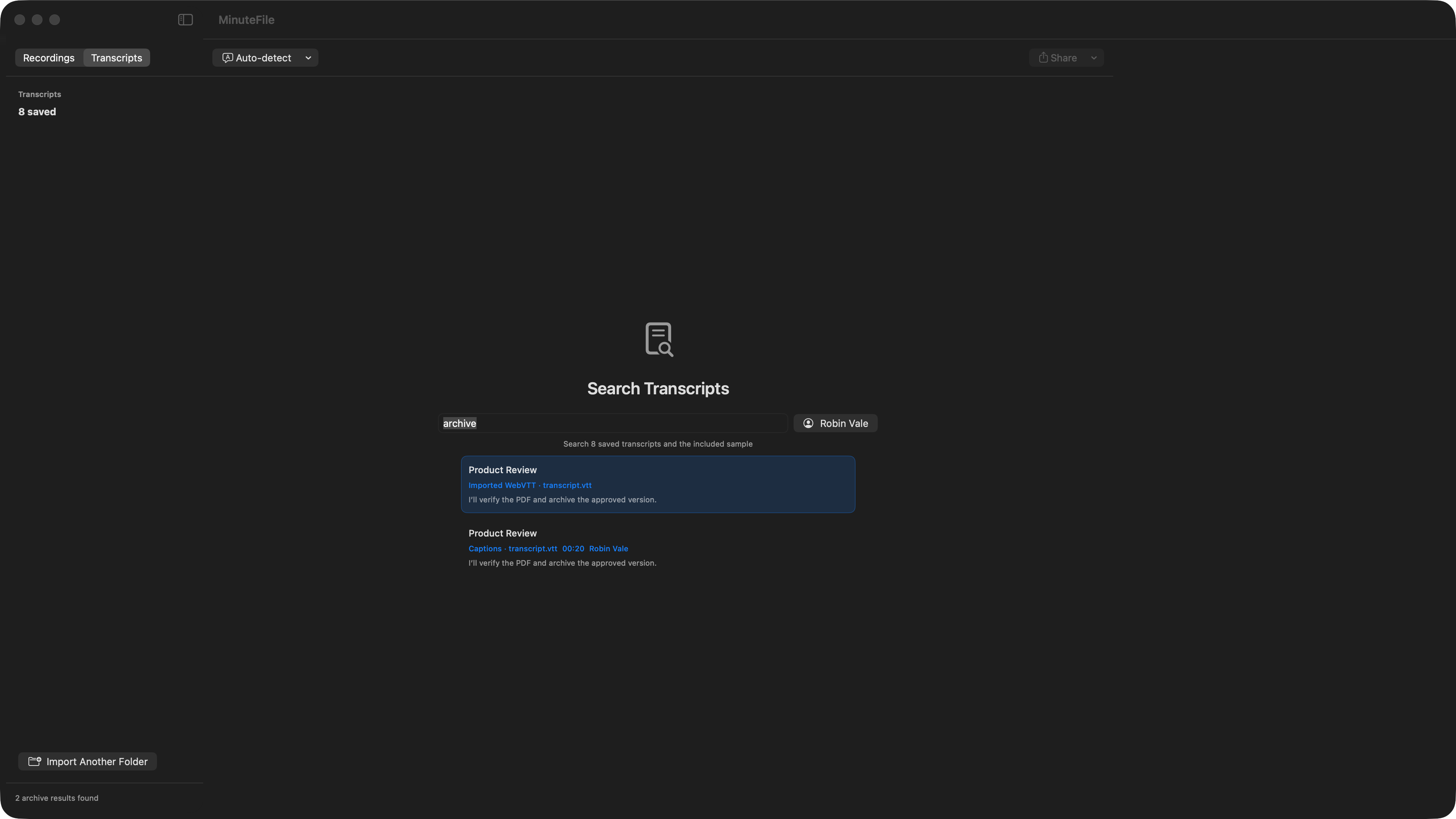
The Zoom recording workflow covers one completed-meeting folder from import through correction and search. My offline transcription software evaluation separates local content handling from the model, update, and payment operations that still use the network.
Automatic speaker identity and manual People solve different problems
Otter separates speech into speaker blocks. Its current documentation says it automatically tags a speaker when it can, uses existing account and shared workspace speaker profiles, and learns from manual speaker tags. A new voice may remain Speaker 1 or unknown until someone tags or retags it.
MinuteFile does not learn a voice or claim to identify one. I correct a meeting-only label first, then manually assign a reusable Person when I know the identity. That Person becomes available for later assignment and archive filtering, but the app never turns the assignment into automatic voice recognition.
MinuteFile’s Split Turn is equally literal. If one transcript block contains two speakers, the first block keeps its known timestamp and the new block is marked untimed. MinuteFile does not invent another timestamp or guess who spoke. Otter’s automatic recognition is more useful when I want identification help; MinuteFile’s manual method is useful when I want every reusable identity to be an explicit decision.
Otter searches meeting knowledge; MinuteFile searches saved text
Otter AI Chat works across conversations, shared meetings, channels, and folders. It can answer questions, make summaries, and pull context from the selected material. Otter also provides transcript and conversation search, with more advanced search controls on paid plans.
MinuteFile search is not AI chat or semantic retrieval. It looks for literal text in saved transcripts and can narrow matches by a manually assigned Person. I use it to find the exact project name, phrase, or person I remember, then open the transcript at that result.
The products also export different records. Otter Basic exports TXT; paid plans add clipboard, DOCX, PDF, and SRT transcript formats, with MP3 audio export and plan-dependent bulk export. MinuteFile exports TXT, Markdown, and HTML from its local transcript record. It does not match Otter’s document, subtitle, audio, or bulk export range.
Otter plans pay for live and cloud capacity
Otter’s current pricing page lists these individual and team boundaries:
- Basic: free, 300 transcription minutes per user each month, 30 minutes per conversation, three lifetime audio/video file imports, and access to the 25 most recent conversations.
- Pro: US$16.99 per user monthly or US$8.33 per user monthly when billed annually, 1,200 monthly minutes, 90 minutes per meeting, 10 monthly file imports, unlimited storage, and advanced search and export.
- Business: US$30 per user monthly or US$19.99 per user monthly when billed annually, unlimited meetings and in-app recordings, 6,000 imported-file minutes per user monthly, an advertised unlimited number of file imports within that minute limit, and up to four hours per meeting.
Prices, promotions, and plan limits can change. Otter’s subscription makes sense when live capture, cloud meeting history, AI notes, collaboration, and recurring import capacity are the work being purchased.
MinuteFile’s trial transcribes three recordings. The US$39 perpetual licence unlocks further local transcription and retranscription in the current app. It does not buy Otter’s live service, cloud storage, summaries, or collaboration, and I would not compare the prices without comparing those jobs first.
MinuteFile is not a replacement for Otter’s meeting service
Keep Otter when any of these are part of the job:
- live transcription or recording from web, mobile, or desktop;
- a Notetaker that joins Zoom, Google Meet, or Microsoft Teams;
- botless desktop meeting capture;
- automatic summaries, outlines, action items, meeting templates, or AI Chat;
- automatic speaker identification or shared speaker profiles;
- cloud search across meetings, channels, and folders;
- shared live transcripts, comments, channels, permissions, or workspace administration;
- Otter’s supported transcription languages, integrations, export formats, or recurring service capacity.
MinuteFile fits after capture, when recordings or existing transcripts are already on the Mac and the durable job is correction plus a local searchable archive. Its current public transcription controls are Auto-detect, English, and Chinese. I do not claim broader language support, an accuracy percentage, automatic identity, live capture, or parity with Otter’s cloud workflow.
Primary Otter sources
- Otter plans, pricing, import limits, languages, and platform links
- Basic plan conversation, import, and history limits
- Import an audio or video file
- Otter desktop app for Mac and Windows
- Otter Notetaker overview
- Tagging and identifying speakers
- Otter transcription languages
- Otter AI Chat overview
- Channels and collaboration
- Export conversations
- Otter Privacy Policy
Try MinuteFile on three recordings free or inspect the complete MinuteFile workflow. A perpetual licence costs US$39 paid once.