What System Data on a Mac is, and what you can actually check
A large System Data bar does not tell me which files to remove. Apple says the category “measures the storage space used by all Apple and third-party files that don’t belong to any more specific category.” It is a catch-all, rather than a folder I can open. Apple’s storage explanation is the starting point.
I separate two questions: how much storage is available, and which files I recognize and can manage. The System Data total does not tell me why storage is low or how much space I could recover. My first pass uses Storage settings, backup information, and Finder. A folder scanner comes later, if navigating those folders becomes tedious.
What System Data includes
Apple lists logs, caches, VM files, runtime resources, temporary files, fonts, app support files, and plug-ins as examples. Apple also lists macOS separately. System Data therefore does not mean just the operating system, or just disposable caches. Its size depends on the Mac’s current state. See Apple’s Storage category descriptions.
That list is not an inventory of my Mac. I cannot infer from the bar that a particular cache, virtual machine, or backup accounts for the difference I am trying to explain. I need to identify a location and its owner before making a change.
Apple puts iPhone and iPad backups in iOS files, so I do not automatically call those System Data. Time Machine local snapshots are another storage mechanism: Apple’s snapshot documentation explains them, but does not establish which part of my System Data bar they occupy. I check backups and snapshots without adding their sizes to a supposed System Data cleanup total.
Check Storage settings first
Open System Settings → General → Storage. Read the available-storage figure alongside the category totals. Open a category’s Info button where one is offered. Documents includes large-file and download views, sorting by size, and File Browser for folder usage. Show in Finder takes me to a selected file. These controls are described in Apple’s Storage settings guide.
System Data has no equivalent list of files to select and delete in that panel. I use the categories that offer management controls before looking through app data manually. The Finder and large-files guide covers that built-in workflow in more detail.
Check local snapshots without deleting them
In Terminal, this command lists local Time Machine snapshots for the startup volume:
tmutil listlocalsnapshots /
The command lists snapshots; it does not measure reclaimable bytes or explain the System Data total. Its operation is documented in the Mac’s man tmutil manual under listlocalsnapshots.
Apple explains that local snapshots let Time Machine restore files even when the backup disk is unavailable. macOS counts their space as available storage and removes snapshots as they age or space is needed. My default here is to leave backup settings alone and reconnect the backup disk. I do not turn off backups just to shrink a category number.
Review device backups through Finder
Connect the iPhone or iPad, select it in Finder, open General, then Manage Backups. Apple’s instructions include Show in Finder, Archive, and Delete for a selected backup. I identify the device and backup date first, and keep a backup I still need for recovery.
For inspection, Apple’s documented folder is:
~/Library/Application Support/MobileSync/Backup/
Use the backup-management interface for decisions about a backup rather than removing unfamiliar pieces inside it. Apple’s locate-and-manage-backups page gives both routes.
Look inside folders you can inspect
Apple’s Library directory reference describes several useful starting points:
~/Library/Application Supportholds app-specific support files and can contain user data.~/Library/Containersholds sandboxed apps’ home directories.~/Library/Cachesholds cached data intended to be regenerated.~/Library/Developerholds data used by Xcode and other developer tools.
I use these folders to identify which app owns the data. Their totals do not map directly to System Data. For example, a large Application Support folder may contain something I want to keep. I look for the app’s own storage controls or documentation before touching its files. For developer data, I identify the project or tool before choosing its cleanup command.
In Finder, choose Go → Go to Folder and paste one of those paths. The ~ means my home folder; ~/Library and /Library are different locations. Apple documents pathname navigation here.
Use List view, then View → Show View Options → Calculate all sizes, and sort by Size. For a single folder, File → Get Info or Command-I is another route. Apple’s Finder information guide covers Get Info; Finder’s installed scripting dictionary also documents folder-size calculation.
For a read-only Terminal check of one folder:
du -sh ~/Library/Caches
The Mac’s man du manual describes filesystem block usage, with -s for a summary and -h for readable units. A permission error means the check is incomplete. I stop at that boundary rather than adding sudo to make the number look comprehensive.
When I use SimplyDiskSweeper for this
I build SimplyDiskSweeper. Its Common Locations includes a System Data contributors group with shortcuts to locations such as Application Support, Containers, and Caches. The group names places worth inspecting; it does not measure Apple’s System Data category.
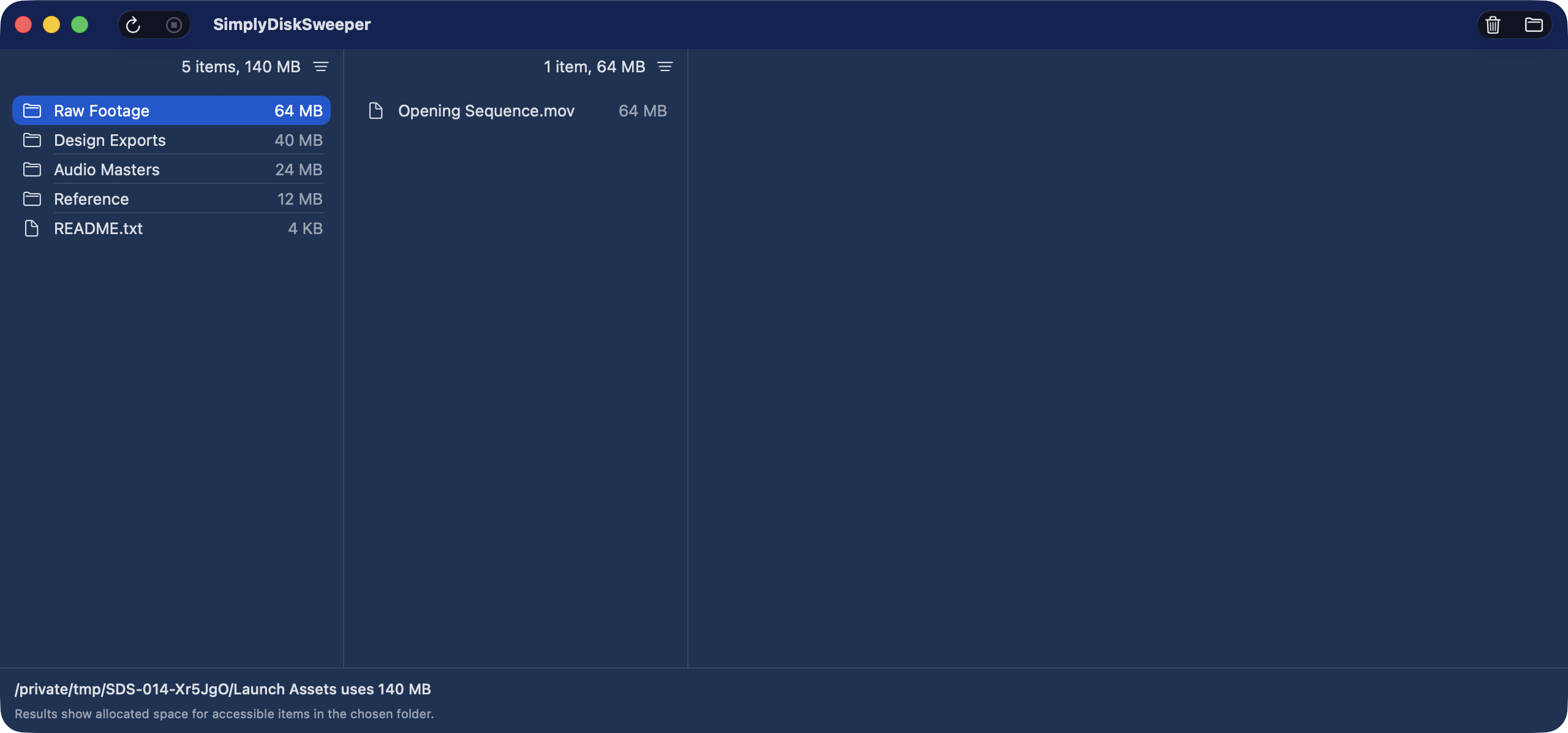
I choose a folder such as ~/Library, grant access, and scan its accessible contents once. SimplyDiskSweeper ranks files and folders by allocated space in nested columns. I can follow a large branch while keeping its parents visible. Moving selected items to macOS Trash requires confirmation. The app costs US$14.99 upfront on the Mac App Store.
SimplyDiskSweeper does not show snapshot accounting, purgeable space, protected system locations it cannot access, or files outside the folder I grant. It does not measure, shrink, or clean System Data, and allocated space is not a promise of recoverable bytes. Buy it for inspecting a chosen folder, not for explaining the entire Storage bar.
Stop before deleting unfamiliar system or app data
Do not delete inside /System or /Library on guesswork. Finding a large folder is a reason to identify its owner and recovery path. It is not permission to remove its contents. The same caution applies to app containers and support data in my own Library.
If I move an ordinary file to Trash, I check that the affected app or project still works before emptying it. Apple documents restoring an item with Put Back. Emptying Trash removes that recovery route, and Apple notes that trashed files still occupy storage until it is emptied. I then check available storage again rather than treating a folder’s displayed size as space already recovered.
For choosing among folder browsers and visual maps, use the Mac disk space analyzer comparison. Keep the question specific: which recognizable files can I manage, and through which app?