Mac disk space analyzers compared by workflow
Mac disk space analyzers answer the same first question: which files and folders are using the space? They differ in how they show the answer, what they can scan, how files are removed, and what they cost.
Before installing one, I use macOS Storage and Finder to find large files. The built-in route is enough when I only need a large-file list or the sizes in one Finder view.
I make SimplyDiskSweeper, so this is not a neutral roundup. I use current first-party facts and spell out when DaisyDisk, OmniDiskSweeper, or GrandPerspective is the better choice.
Prices, platform requirements, and competitor features were verified August 1, 2026. Prices below are US prices. Local App Store prices can differ.
The short comparison
| App | Main view | Current price | Current platform boundary | Choose it when |
|---|---|---|---|---|
| DaisyDisk | Interactive sunburst map | US$9.99 paid once | macOS 10.13+, Intel and Apple silicon | You want a polished visual map, broad advertised disk coverage, cloud-disk connections, administrator scanning, or snapshot tools |
| OmniDiskSweeper | Largest-first nested columns | Free direct download | macOS; Omni also publishes separate test builds for macOS 14+ | You want a free, direct-download column browser and are comfortable deciding what to remove |
| GrandPerspective | Configurable treemap | Free from SourceForge or US$2.99 from the Mac App Store | macOS 11+, Intel and Apple silicon | You want an open-source treemap with extensive display and filter controls |
| SimplyDiskSweeper | Ranked Finder-like columns | US$14.99 paid once on the Mac App Store | macOS 15+ | You want a sandboxed App Store app, a folder you choose, per-column filtering and keyboard navigation, multi-selection, and confirmed moves to Trash |
None of these apps knows which personal files you can afford to lose. A disk-space analyzer can show size and location. You still need to inspect the file, understand what created it, and keep a backup when the file matters.
Choose DaisyDisk for the visual map and broader scan tools
DaisyDisk turns a disk into an interactive sunburst map. Large areas stand out immediately, and I can drill into a slice, preview a file with Quick Look, and collect items for removal. The current product also advertises local, external, network, and supported cloud-disk scanning, administrator scanning, and macOS snapshot management.
DaisyDisk currently costs US$9.99 paid once and supports macOS 10.13 or newer. That makes it cheaper than SimplyDiskSweeper and compatible with much older Macs. If the visual map is how you understand storage, keep DaisyDisk. A Finder-like column browser is not a substitute for that interaction.
The DaisyDisk alternative comparison goes through that choice in more detail.
Choose OmniDiskSweeper for free ranked columns
OmniDiskSweeper is the closest interface comparison here. The Omni Group describes it plainly: it lists files from largest to smallest and lets me open them or move them to Trash. It is free and distributed directly from Omni.
That is a strong offer. If I want ranked nested columns, do not mind direct distribution, and am comfortable making each cleanup decision myself, OmniDiskSweeper can do the job without another purchase.
I have maintained a separate OmniDiskSweeper how-to since 2014. It now includes the exact OmniDiskSweeper-versus-SimplyDiskSweeper decision without creating a second page for the same product.
Choose GrandPerspective for a free open-source treemap
GrandPerspective shows disk usage as rectangles whose areas correspond to file size. Its controls go well beyond one fixed view: the current app can color files by several attributes, change palettes and display focus, navigate the hierarchy, search by name, apply advanced filters, use Quick Look, reveal items in Finder, and delete selected files.
Version 3.7.2 currently requires macOS 11 or later. The same app is free from SourceForge or US$2.99 from the Mac App Store. The project says App Store updates can lag direct releases by a few weeks so bugs can be fixed before the store update.
GrandPerspective is the sensible choice when I want an open-source treemap or need its visualization and filter controls. It does not need a standalone comparison page in this first cohort; current exact alternative-query evidence is too weak, and the hub already carries the useful decision.
Choose SimplyDiskSweeper for a selected-folder column workflow
SimplyDiskSweeper starts with a folder I choose. It recursively measures accessible entries, shows their allocated space, and ranks each column from largest to smallest. I can navigate the hierarchy with the keyboard, filter within a column, select more than one item in a column, and move the selection to macOS Trash after a confirmation.
The scope is deliberately narrower than DaisyDisk. SimplyDiskSweeper does not claim privileged whole-disk coverage, APFS snapshot accounting, purgeable or free space, cloud-account totals, unique physical blocks, or recoverable bytes. It reports allocated space for entries it can access inside the chosen folder.
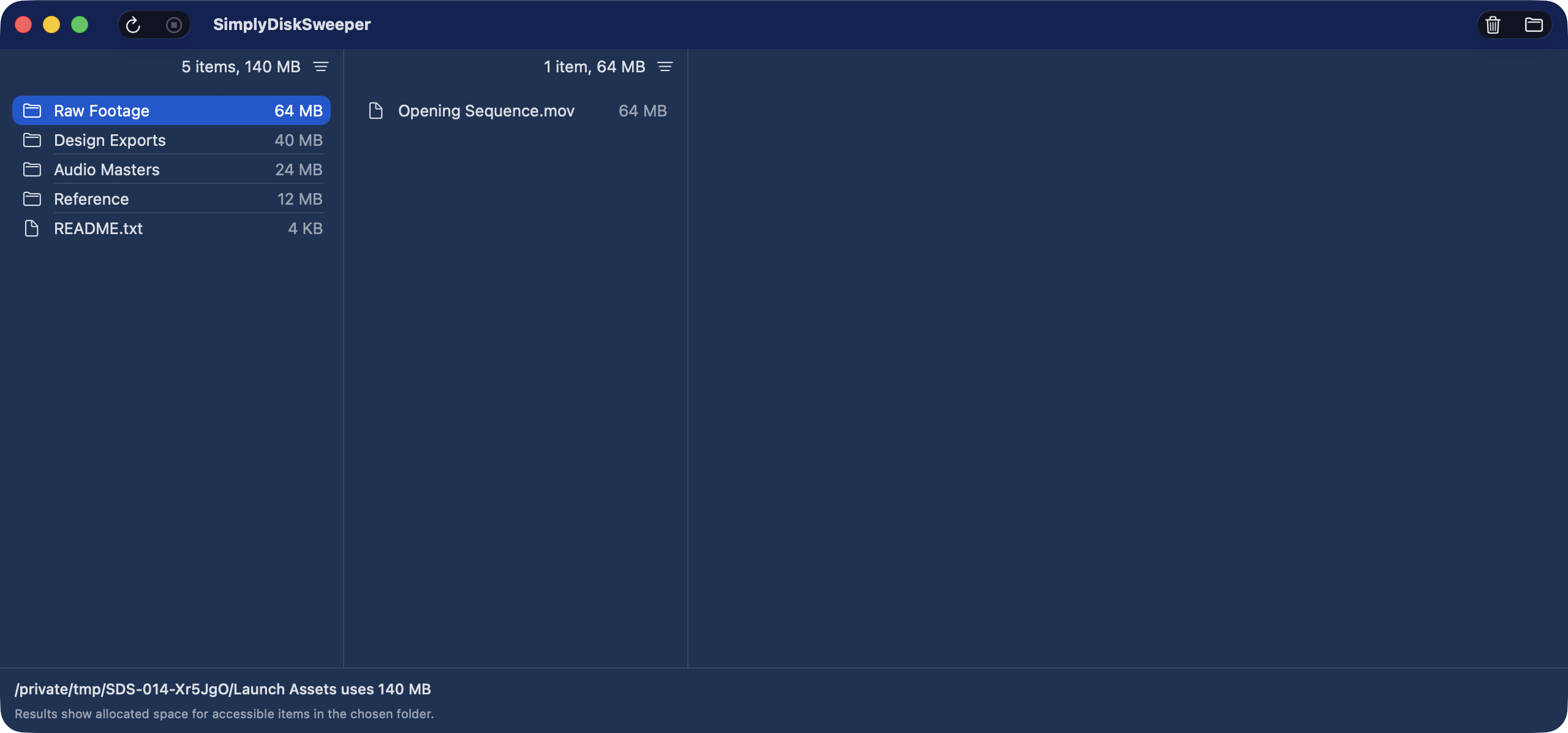
The current US Mac App Store listing is version 0.16.0, costs US$14.99, and requires macOS 15 or later. Choose it only when the Finder-like browsing model, App Store sandbox, multi-selection, and explicit Trash workflow are worth more to you than the cheaper or free alternatives.
Pick the view before comparing feature counts
I start with the representation I can read fastest. DaisyDisk’s sunburst and GrandPerspective’s treemap show area, so a large visual block pulls attention before I read its path. OmniDiskSweeper and SimplyDiskSweeper show names and sizes in nested columns, so the parent-child relationship stays visible while I drill down.
Neither representation is universally clearer. A treemap can reveal several large branches in one view, but dense rectangles need interpretation. Columns make names and paths easy to follow, but they show one level at a time and require more navigation. The interface determines how I inspect the same storage result.
Match the scan scope to the question
Use DaisyDisk when the question includes several mounted or supported cloud disks, restricted locations, or snapshots. GrandPerspective fits a configurable local treemap and filter workflow. OmniDiskSweeper covers a free direct-download size list.
SimplyDiskSweeper fits a narrower question: what uses allocated space inside this folder I chose? That scope can be a home folder, Downloads, a project folder, or another location the sandbox can access. It does not turn the result into a complete account of the Mac.
Check distribution and macOS support
The four apps also have different installation boundaries. DaisyDisk offers direct and Mac App Store editions and supports macOS 10.13 or newer. GrandPerspective offers an open-source SourceForge download and a paid Mac App Store copy and currently requires macOS 11. OmniDiskSweeper is a free direct download; Omni labels its separate 1.16 builds as test builds for macOS 14 or later.
SimplyDiskSweeper is Mac App Store-only and currently requires macOS 15. That is useful when I want Apple’s store distribution and sandboxed, user-selected access. It is an immediate exclusion when the Mac must remain on an older release or when direct distribution is required.
What “safe to delete” means here
Scanning and deleting are two separate decisions. I use these checks before moving anything:
- Reveal or preview the file and confirm what created it.
- Start with my own Downloads, exports, installers, archives, and replaceable media.
- Leave app support folders, photo libraries, virtual machines, and system folders alone until I understand their contents and recovery path.
- Check that the backup exists before removing the only copy.
- Treat a displayed byte count as measured storage, not a promise that the same amount will become free.
A protected file, inaccessible folder, APFS clone, snapshot, cloud placeholder, or purgeable category can make the relationship between a displayed size and available disk space less direct. No comparison table can remove that filesystem boundary.
If the Storage bar is the question, what System Data on a Mac means explains Apple’s categories, read-only snapshot checks, and the limits of a folder scan.
Verify free space after the cleanup
After moving files, I check the actual free-space value in macOS and confirm that the apps or projects I use still open correctly. Moving an item to Trash may not free its space until Trash is emptied. Cloud-managed files, snapshots, clones, and purgeable data can also make the change differ from the number shown beside one file.
I keep the cleanup limited, verify the Mac, and then empty Trash when I am sure. One small pass is easier to diagnose or restore than a large batch from several unrelated folders.
Primary sources
- DaisyDisk product, pricing, platform, scan, and privacy details
- DaisyDisk US Mac App Store listing
- The Omni Group’s OmniDiskSweeper page
- The Omni Group’s free OmniDiskSweeper release note
- GrandPerspective features, downloads, pricing, releases, and requirements
- SimplyDiskSweeper product page
- SimplyDiskSweeper US Mac App Store listing
If ranked Finder-like columns fit how you inspect a Mac folder, see the complete SimplyDiskSweeper workflow. It costs US$14.99 upfront on the Mac App Store.