A TurboScribe alternative that keeps transcription and the archive on your Mac
Keep TurboScribe if you want to upload long recordings or large batches and have a cloud service return transcripts quickly. Try MinuteFile when recordings are already on your Mac and you want local transcription plus an editable, literal-searchable archive that stays there.
I make MinuteFile for Mac. I am comparing two different workflows, not claiming that MinuteFile matches TurboScribe’s throughput, language range, translation, or every export format. Automatic transcription can be wrong in either workflow, so I review important words and names against the recording.
TurboScribe workflow, privacy, and pricing facts verified August 1, 2026, from the TurboScribe site, current pricing, and security and privacy FAQ. MinuteFile facts verified against version 0.1.8 and its privacy page on the same date.
Choose cloud throughput or a local completed-recording archive
TurboScribe starts with an upload. Its current web interface accepts common audio and video formats, offers optional speaker recognition and audio restoration, processes the file on TurboScribe’s infrastructure, and returns a transcript that can be edited, organized, translated, and exported. The Unlimited plan is built for volume: files can be up to 10 hours or 5 GB each, with 50 uploaded at a time.
MinuteFile starts with a completed recording folder or an existing transcript on a Mac. Transcription runs on the Mac after the required model is installed. MinuteFile then keeps the recording reference, corrected transcript, manual People, review bookmarks, and literal archive search together locally.
| Workflow question | TurboScribe | MinuteFile 0.1.8 |
|---|---|---|
| What starts the job? | An audio or video file uploaded through the web service, including common media formats and documented YouTube input | A completed recording folder, or an existing VTT, SRT, timestamped-text, or plain-TXT transcript on a Mac |
| Where does transcription run? | On machines TurboScribe says it owns or controls, after the recording is uploaded | On the Mac after the selected model is installed |
| How is volume handled? | Unlimited currently permits 10-hour or 5 GB files and 50 uploads at a time | One local transcription job at a time; the trial covers three recordings |
| What happens after transcription? | Edit or organize the cloud-held transcript, translate it, and export PDF, DOCX, TXT, CSV, SRT, or VTT, including bulk actions | Correct and save the transcript, manually assign People, add bookmarks, run literal archive search, and export TXT, Markdown, or HTML |
| What does it cost? | Three free transcripts daily up to 30 minutes each; Unlimited is US$10/month billed yearly or US$20 billed monthly | Three-recording transcription trial; US$39 perpetual licence paid once |
The subscription and one-time licence buy different capacity. TurboScribe’s price makes sense when upload throughput, translation, cloud storage, or its output formats save recurring work. MinuteFile’s US$39 licence does not turn one local job at a time into a 50-file cloud queue.
TurboScribe fits long files, large batches, and cloud output
TurboScribe is the better choice when the work is mainly getting a lot of media through speech-to-text. The current Unlimited plan advertises uncapped overall transcription for one person, files up to 10 hours or 5 GB, 50 simultaneous uploads, highest-priority processing, bulk exports, and unlimited storage.
TurboScribe also advertises transcription in more than 98 languages and translation of transcripts or subtitles to more than 130 languages. MinuteFile 0.1.8 only exposes Auto-detect, English, and Chinese in its current public transcription controls. I would keep TurboScribe for a multilingual or translation workflow instead of extrapolating what MinuteFile’s underlying model might support.
The current TurboScribe exports cover PDF, DOCX, TXT, CSV, SRT, and VTT. Its bulk tools can move transcripts into cloud folders, export batches, and delete batches. If the deliverable is a folder of subtitle or document files produced from many uploads, TurboScribe already owns that job.
MinuteFile fits the archive after the recording is complete
MinuteFile is useful when transcription is one step inside a longer archive job. I keep each completed recording in its own folder, then import that folder or a parent folder containing several completed meetings. A watched folder is optional and starts in inbox-only mode; I must explicitly choose a model and language before allowing sequential local transcription.
The concrete workflow is:
- Keep the completed recording and any transcript or caption files in one folder on the Mac.
- Import the folder into MinuteFile, or let an inbox-only watched folder detect it.
- Use an existing VTT, SRT, timestamped-text, or plain-TXT transcript, or transcribe the recording on the Mac with an installed model.
- Listen beside the saved transcript, correct the text, and keep meeting-only speaker labels or manually assign reusable People.
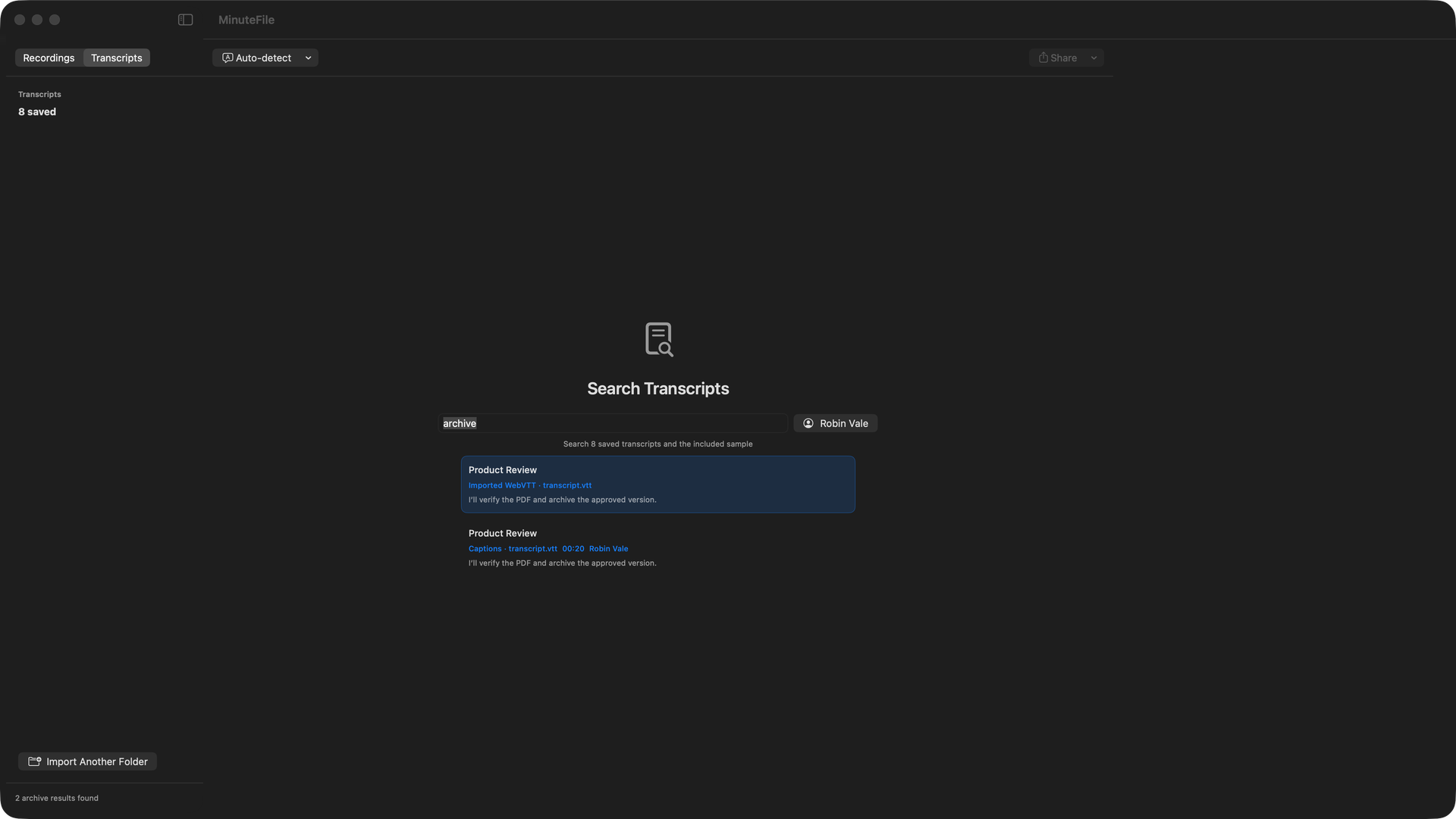
- Add review bookmarks, search for a literal word or phrase across the archive, optionally filter by an assigned Person, then export TXT, Markdown, or HTML.
Correct names once, then reuse the Person
MinuteFile does not identify a person from their voice. If the transcript contains speaker labels, I decide when a label maps to a reusable Person. I can merge or reassign speakers and split a mixed-speaker turn without inventing a timestamp or speaker identity.
That manual step matters across an archive. Once I create a Person and assign the right transcript blocks, I can reuse that Person in later recordings and filter literal search results by the assignment. MinuteFile keeps the correction explicit instead of turning a speaker label into an identity claim.
My local audio-file transcription workflow covers the file preparation steps. If you are comparing local Mac transcription apps rather than a cloud upload service, the MacWhisper alternative covers the broader workstation-versus-archive decision.
Existing transcripts do not need another transcription pass
TurboScribe can export SRT, VTT, and TXT files. MinuteFile can bring those files into a completed recording folder later instead of transcribing the audio again.
VTT, SRT, and recognized timestamped text retain known times when MinuteFile imports them. Plain text remains editable and searchable but stays untimed. An existing transcript does not consume one of the three MinuteFile trial transcriptions.
Media availability remains explicit. Known timestamps connect to local playback when MinuteFile has usable media. If the media file or usable timestamps are missing, MinuteFile keeps the transcript as an editable, searchable record but cannot seek through audio that is not available. It does not manufacture timing data.
Cloud storage and local storage have different privacy boundaries
TurboScribe says uploaded media and transcripts are encrypted at rest and in transit, only the account holder can access them unless they share them, and transcription runs on machines TurboScribe owns or controls rather than a third-party transcription API. Its privacy policy says the primary data infrastructure is in the United States and uploaded account content may remain while the account is active. Deleted content becomes inaccessible immediately, with backup deletion described as taking up to 90 days.
Those are first-party statements about TurboScribe’s controls. The practical fact is that the recording must leave the Mac for TurboScribe to process it; the page does not characterize that workflow as unsafe.
MinuteFile has no account, backend, or cloud transcription API. With a required model installed, recording import, transcription, transcript storage, correction, People, literal search, playback, and export stay on the Mac. Optional transcription and speaker-model downloads, signed update checks and downloads, and Stripe Checkout still use the network, so I do not describe MinuteFile as blanket offline.
The offline transcription software evaluation has the exact checks I use before putting a private recording into either kind of workflow.
MinuteFile is not a replacement for TurboScribe’s throughput
Keep TurboScribe when any of these are part of the job:
- uploading files as long as 10 hours or as large as 5 GB;
- sending up to 50 files into a cloud queue at once;
- using TurboScribe’s advertised broad transcription-language coverage;
- translating transcripts or subtitles to its documented language range;
- exporting PDF, DOCX, CSV, SRT, or VTT, especially in batches;
- keeping and organizing the working files in TurboScribe’s cloud account.
MinuteFile does not capture live meetings, join calls as a bot, generate summaries or action items, answer questions about transcripts, or promise an accuracy percentage. Its useful job begins after recording: correct a transcript, manually curate People, keep the archive on the Mac, and search exact words across it.
Primary TurboScribe sources
- TurboScribe product, workflow, supported inputs, and exports
- TurboScribe current plan limits and pricing
- Security and Privacy FAQ
- TurboScribe Privacy Policy
- Bulk transcript export and file management
- TurboScribe Terms of Service
Try MinuteFile on three recordings free or inspect the complete MinuteFile workflow. A perpetual licence costs US$39 paid once.